
Documentation / Lastboard / Widgets
Proxmox Widget
On this page
The Proxmox widget puts the machine underneath your services on the dashboard itself: how hard the node is working, and which of the things it runs need attention.
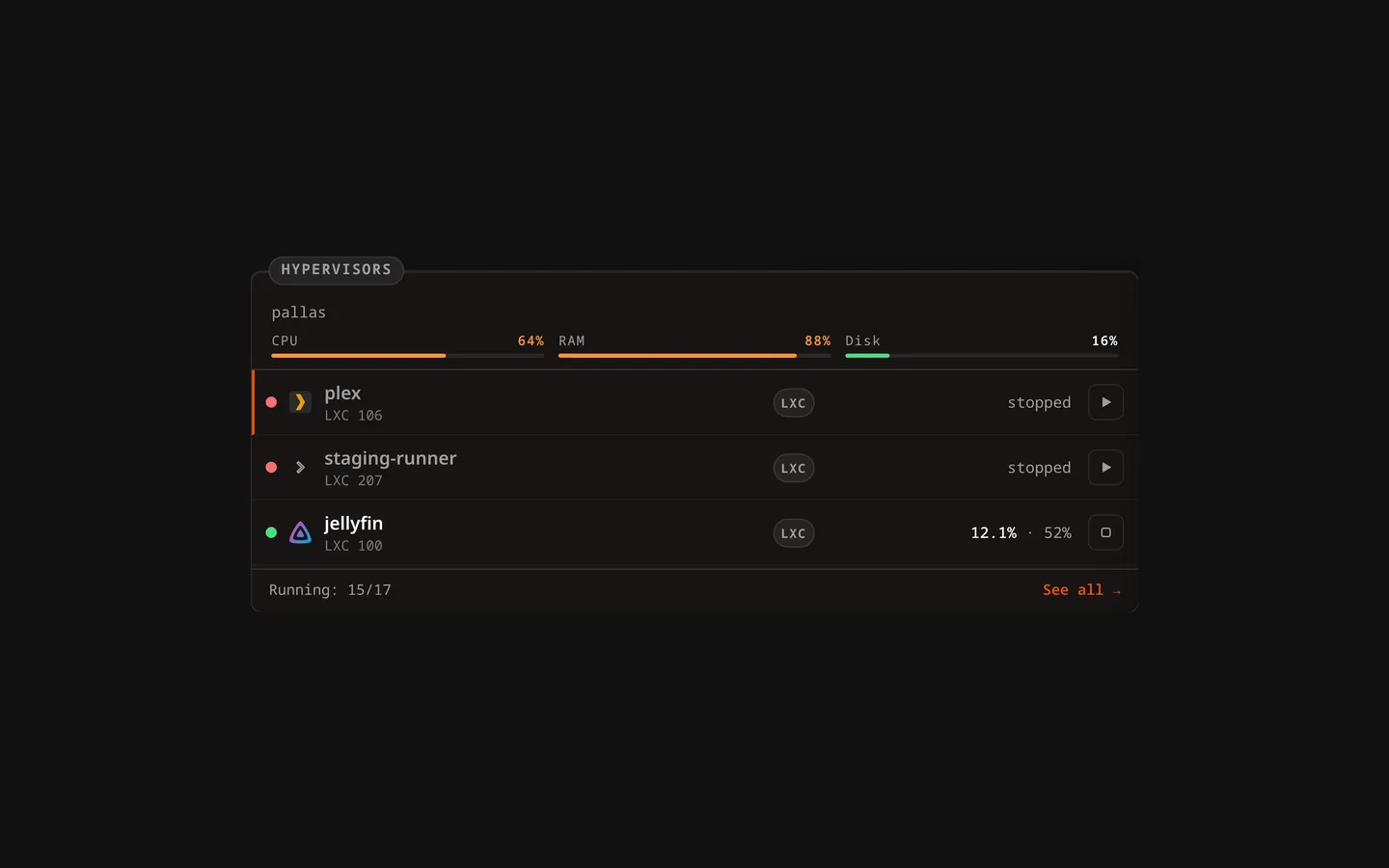
Description
What this adds over the Docker widget is the line of node health at the top of the tile. Docker can tell you a container stopped; only this can tell you the machine it lived on is at 90% memory.
Reading a row from left to right:
- a status dot: green running, red stopped — the same two colours the page uses. A machine that is stopped and serves a bookmark says so with an accent bar down its leading edge, not with a third colour in the dot
- the icon of the bookmark that machine serves — matched by name or chosen by hand — or the board’s own fallback
- the machine’s name and its type and id (
LXC 106,VM 105) - its CPU and memory, or stopped
- a start or shut down button, when the token allows it
A machine that is stopped and serves a bookmark sorts to the top. A stopped machine nobody linked stays where it is: turning things off is a normal thing to do, and a tile that shouts about it is a tile you learn to ignore.
The footer counts what did not fit — Running: 8/9 — and links to the full Proxmox page.
Requires a connection. The widget reads whatever hosts are configured in Settings → Proxmox; without one it says so. See Proxmox for the token and the four commands that create it.
With several hypervisors connected it draws from all of them, in one list ordered by what needs saying. A tile that showed only the first would go quiet about the machine that actually went down, which is the one thing it is on the board to say. Each row’s start and shutdown button follows the token of the hypervisor that machine is on, so one being read-only does not take the buttons away from the other.
Why it is not a list
A tile shows the first few machines and the footer counts the rest, because a real host has more machines than a tile has room — measured on one with twenty-nine on a single node. So the order is by how much each one needs saying, and anything that needs attention is at the top where it can be seen. To go through all of them, open the page.
Configuration
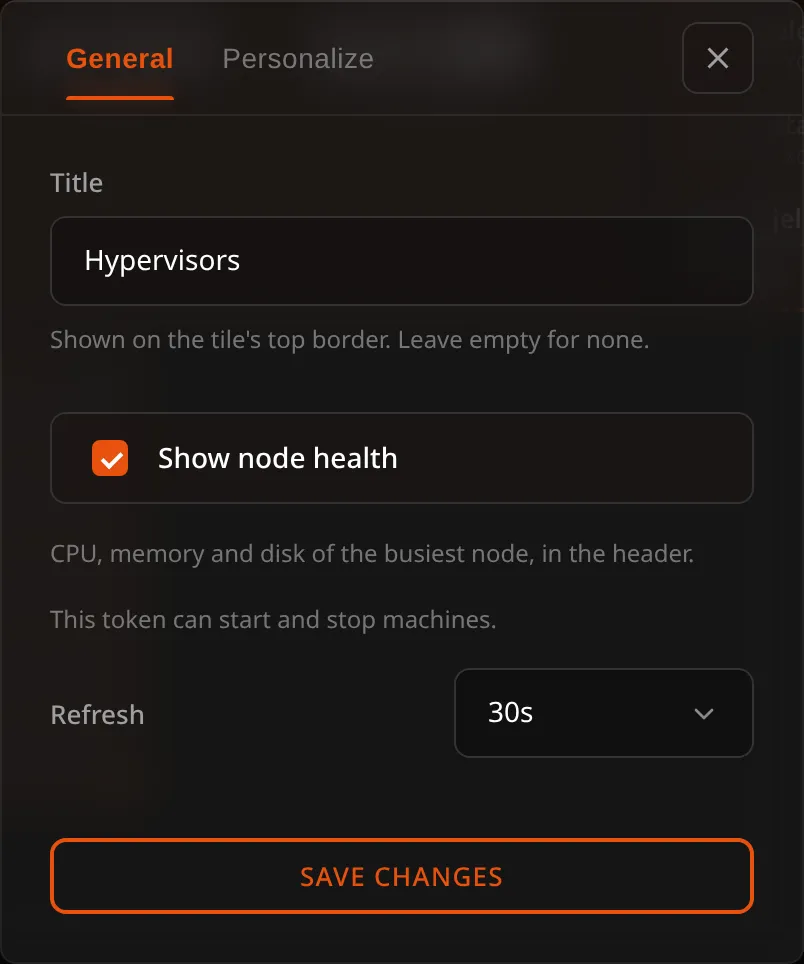
| Option | Default | Description |
|---|---|---|
| Title | None | A name shown on the tile’s top border. A widget that had no title keeps the name it showed: “Proxmox” |
| Show node health | On | CPU, memory and disk of the busiest node, in a strip at the top of the tile |
| Refresh | 30s | How often the widget asks the server for fresh data |
The configuration panel also says, plainly, whether the token this instance holds can start and stop machines or only watch them — the same answer the settings screen gives, so you are never guessing why a button is missing.
Starting and stopping
Same rules as the page: start and shut down only, both with a confirmation, never a node, only on your own hypervisors, and the buttons are only drawn when the token carries VM.PowerMgmt. A machine takes a few seconds to come up; the dot turns green on the following refresh rather than pretending it already has.
Sizing
The widget adapts to the width of the tile, not of the window: on a narrow one the type pill and the memory figure drop away so the name and the button stay readable — the type is already in the line under the name. Its default size is 3x2, which fits everything; with node health on, the strip at the top carries three meters and wants that width.