
Documentation / Lastboard / Using Lastboard
Preferences
On this page
All personalization and system options live in the Settings panel, opened from the icon in the top navigation bar.
Three of the sections — Users, Data and Advanced — belong to the administrator and are not drawn at all for anybody else. Monitoring and Proxmox are every account’s own: each one sees its own, never anyone else’s. A Member account sees My Profile, Look & Feel, Personalization, Monitoring, Proxmox and About, and nothing hints that the rest exist.
Preferences save the moment you change them — there is no “Save” button. Only actions with a real consequence (changing your password or username, managing users, backup/restore, updates) keep an explicit button.
My Profile
Manage your personal profile and security.
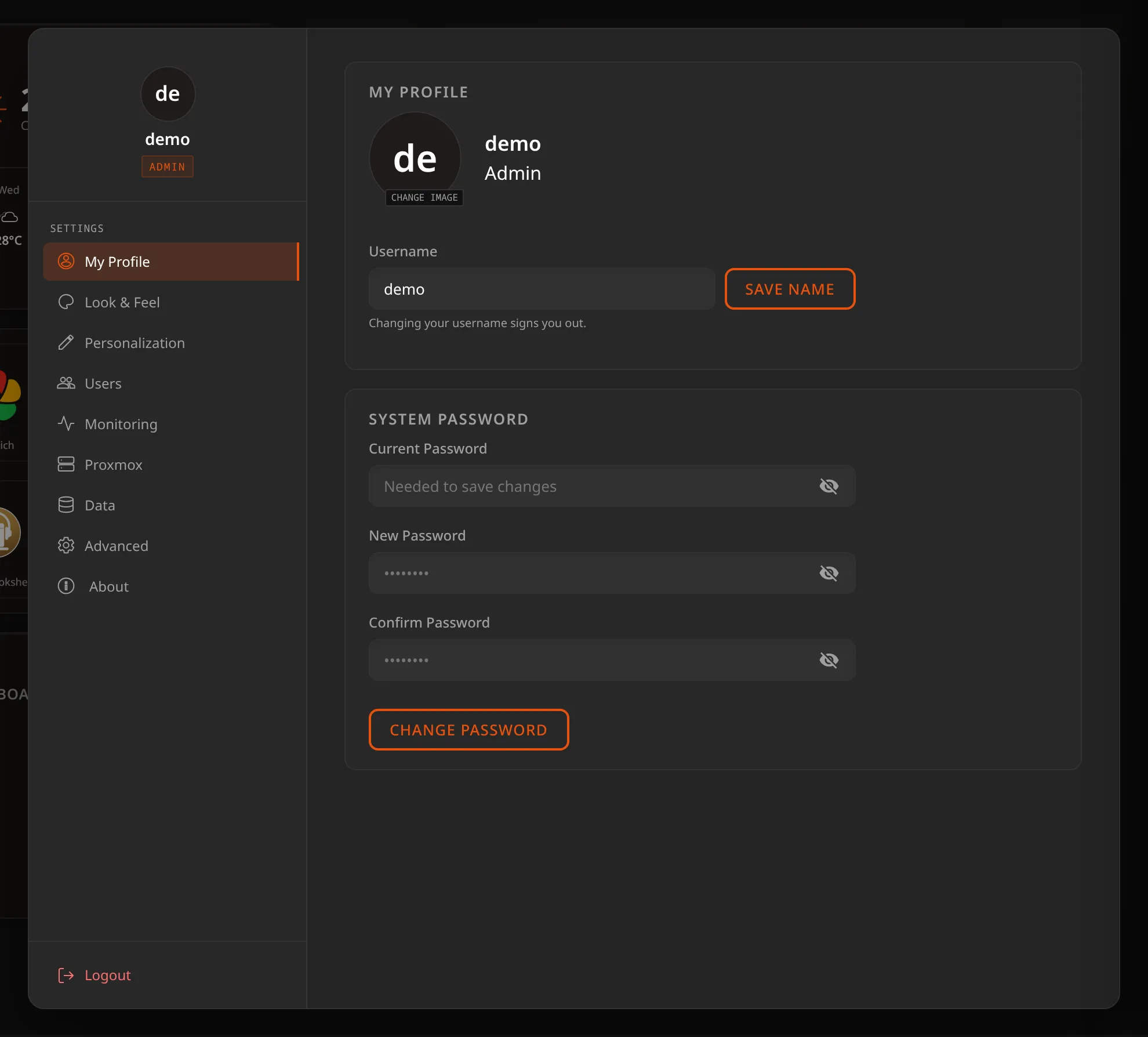
- Avatar — upload a custom profile picture (use Change Image).
- Username — change your display name, then Save Name. This signs you out on this browser, and you sign in again with the new name.
- System Password — update your login credentials. Enter your current password, then the new one twice (up to 256 characters), and Change Password. Every open session of the account ends, this one included, so you sign in again with the new password. A wrong current password counts toward a lockout: after 5 failures the account waits 5 minutes before it accepts another try.
Look & Feel
Everything that changes how the dashboard looks.
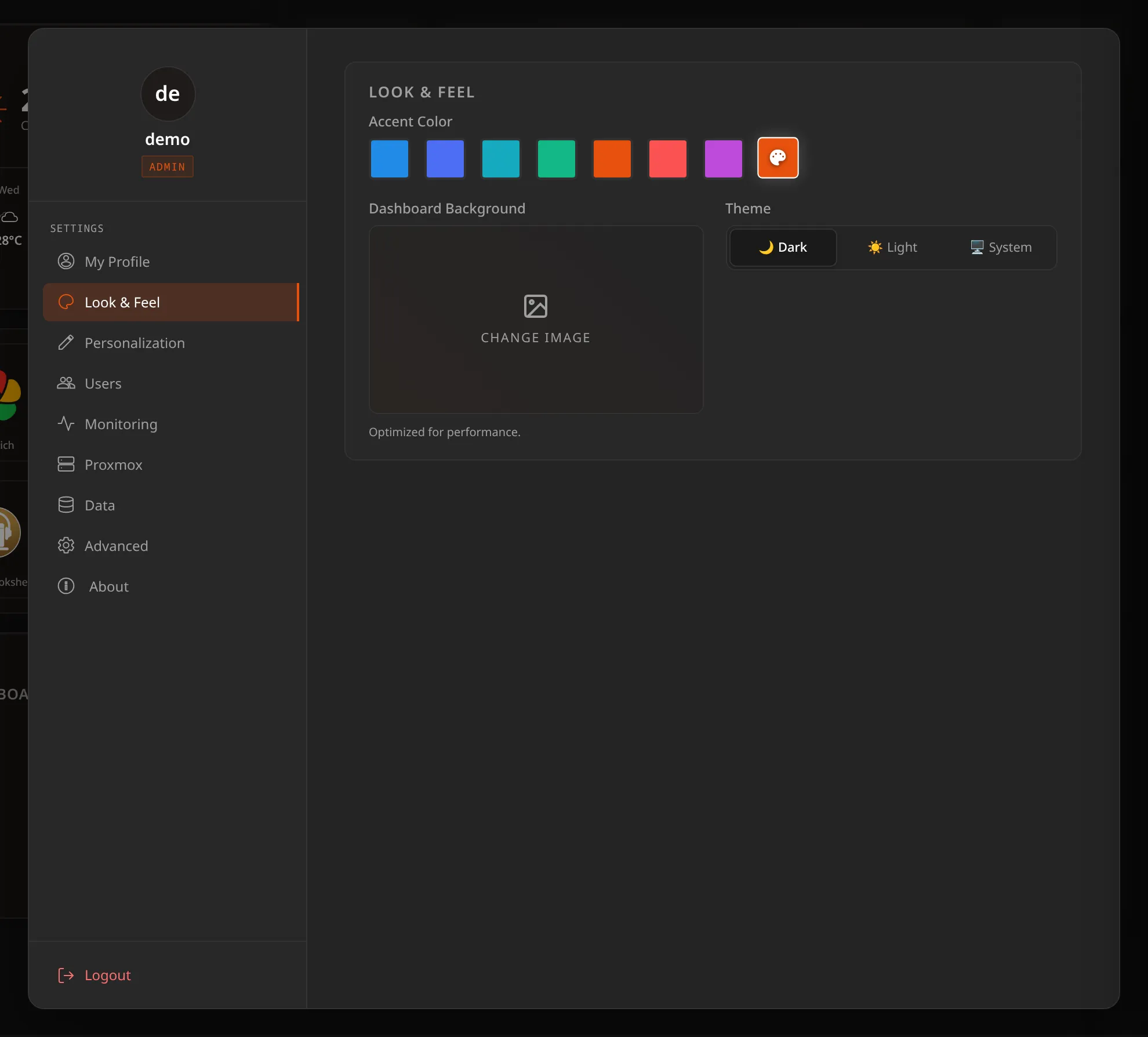
- Accent Color — pick a preset or set a custom color with the picker.
- Dashboard Background — upload any image (only images are accepted); it is resized in your browser before it is stored, and it fills the screen without distortion. It is a per-user setting: one background, behind every one of your dashboards. The × on the preview removes it.
- Theme — Dark, Light, or System. System follows the device you are reading on and changes with it, so a phone that turns dark at sunset turns Lastboard dark with it.
Personalization
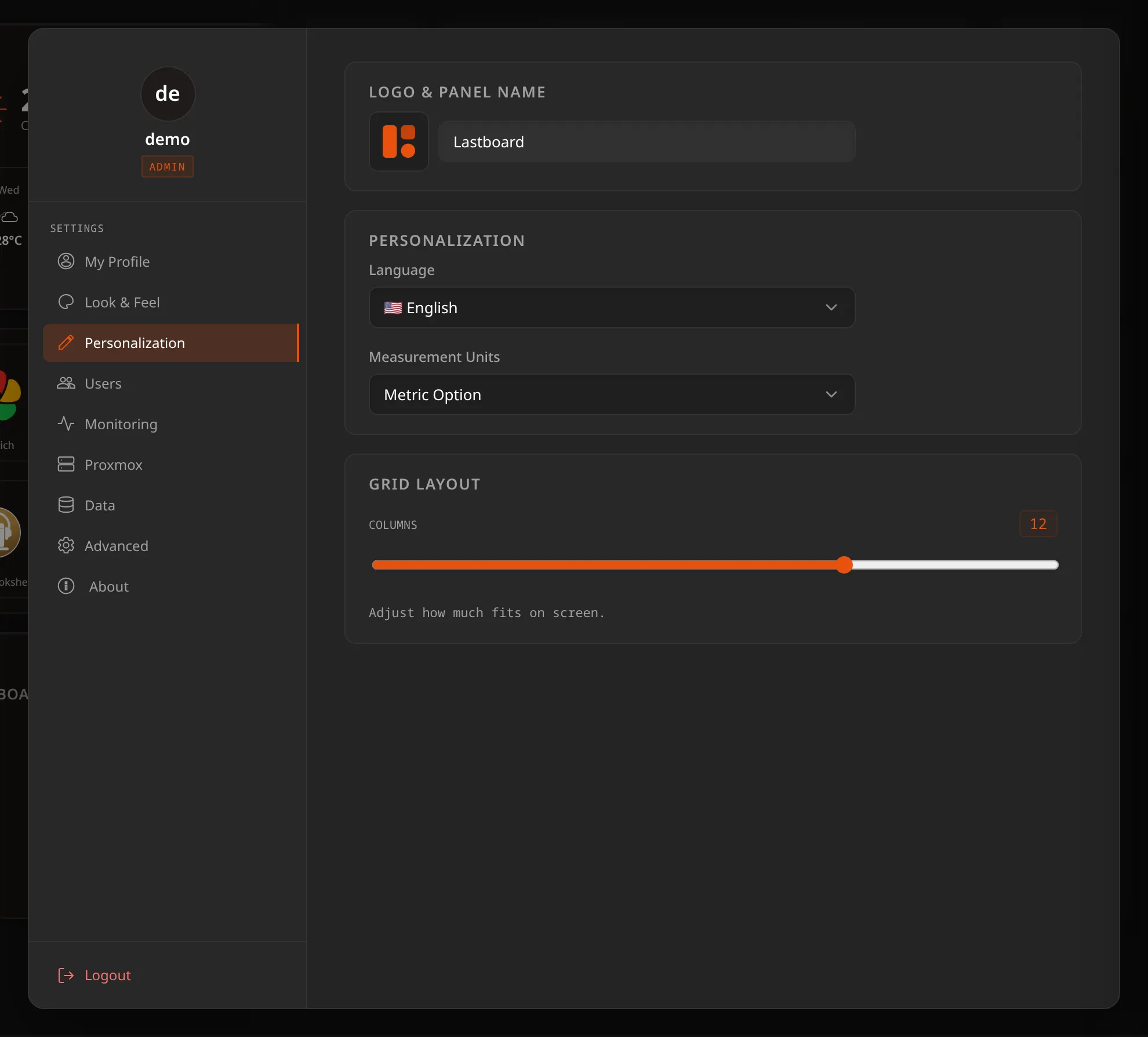
- Logo & Panel Name — customize the title and logo shown in the browser tab and top bar. In the top bar they are a link home: clicking them leaves whatever is open — a full-screen page, the settings — and loads the start page.
- Language — choose from 20 supported languages.
- Measurement Units — Metric (°C, km/h) or Imperial (°F, mph). Applies to all compatible widgets (Weather, Telemetry, …).
- Grid Layout — the Columns slider sets how many columns the desktop grid uses, from 3 to 16 (default 12). Fewer, wider columns give larger tiles; more columns let you place things precisely. It does not affect the mobile layout, which has an order of its own — see Bookmarks.
Users (Administrator Only)
The administrator manages who can access the instance.
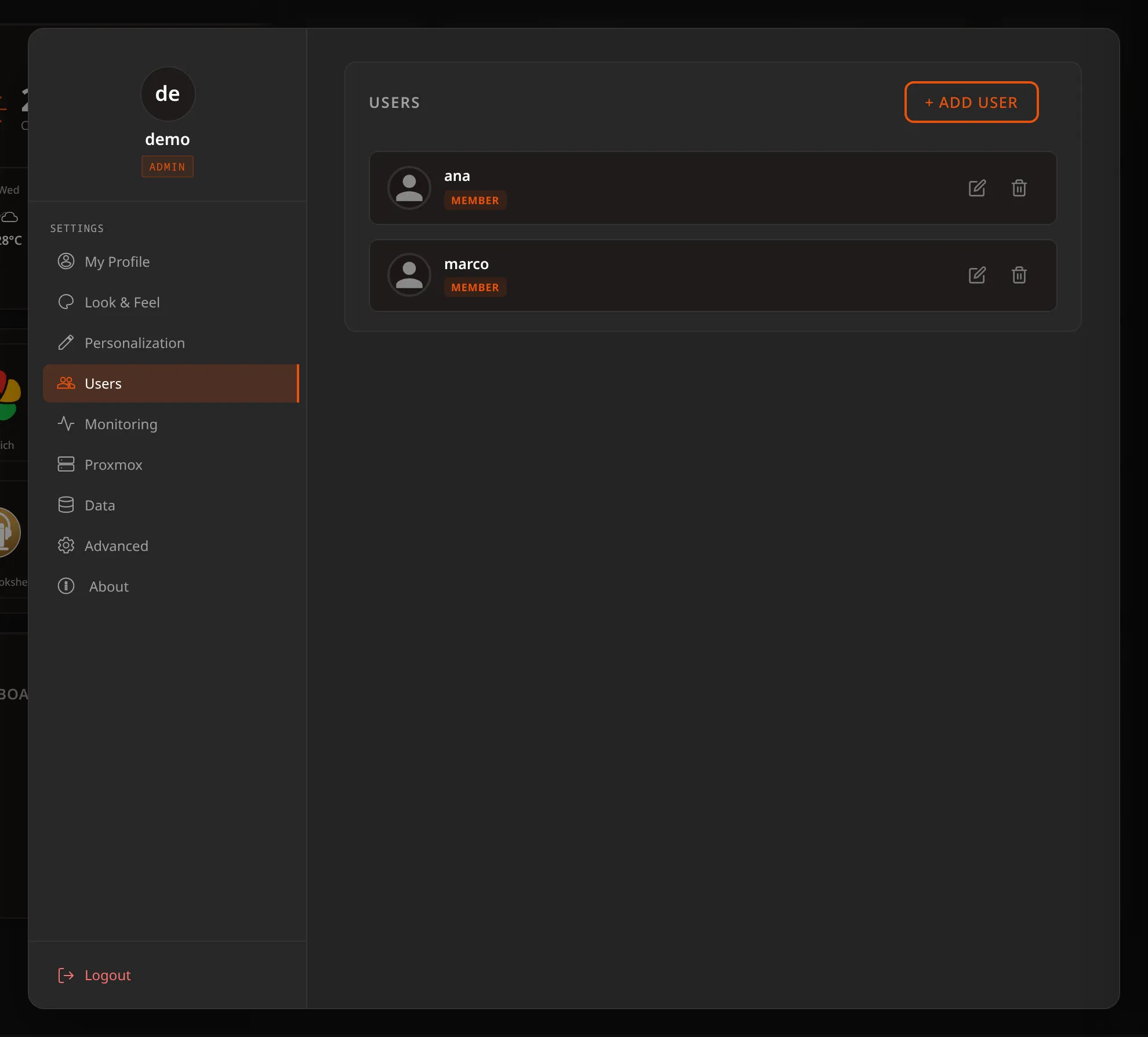
- Add User — create a new account.
- Edit / Delete — modify or remove an existing account from its row. Editing changes a member’s name and, if you type one, their password, which ends their open sessions. Your own account is changed from My Profile, never from here. Deleting asks for your password.
- Roles — an instance has exactly one Admin: the account created by the Setup Wizard. Every account added afterwards is a Member, and there is no way to promote one. If you need to hand the instance over, change the admin account’s own username and password rather than creating a second administrator.
Monitoring
Turn service monitoring on for your own bookmarks, choose how often the server checks them, and configure down/up alerts via ntfy, Gotify or a webhook. Every account has its own settings and its own alert channel. See Monitoring & Uptime for the full guide.
Proxmox
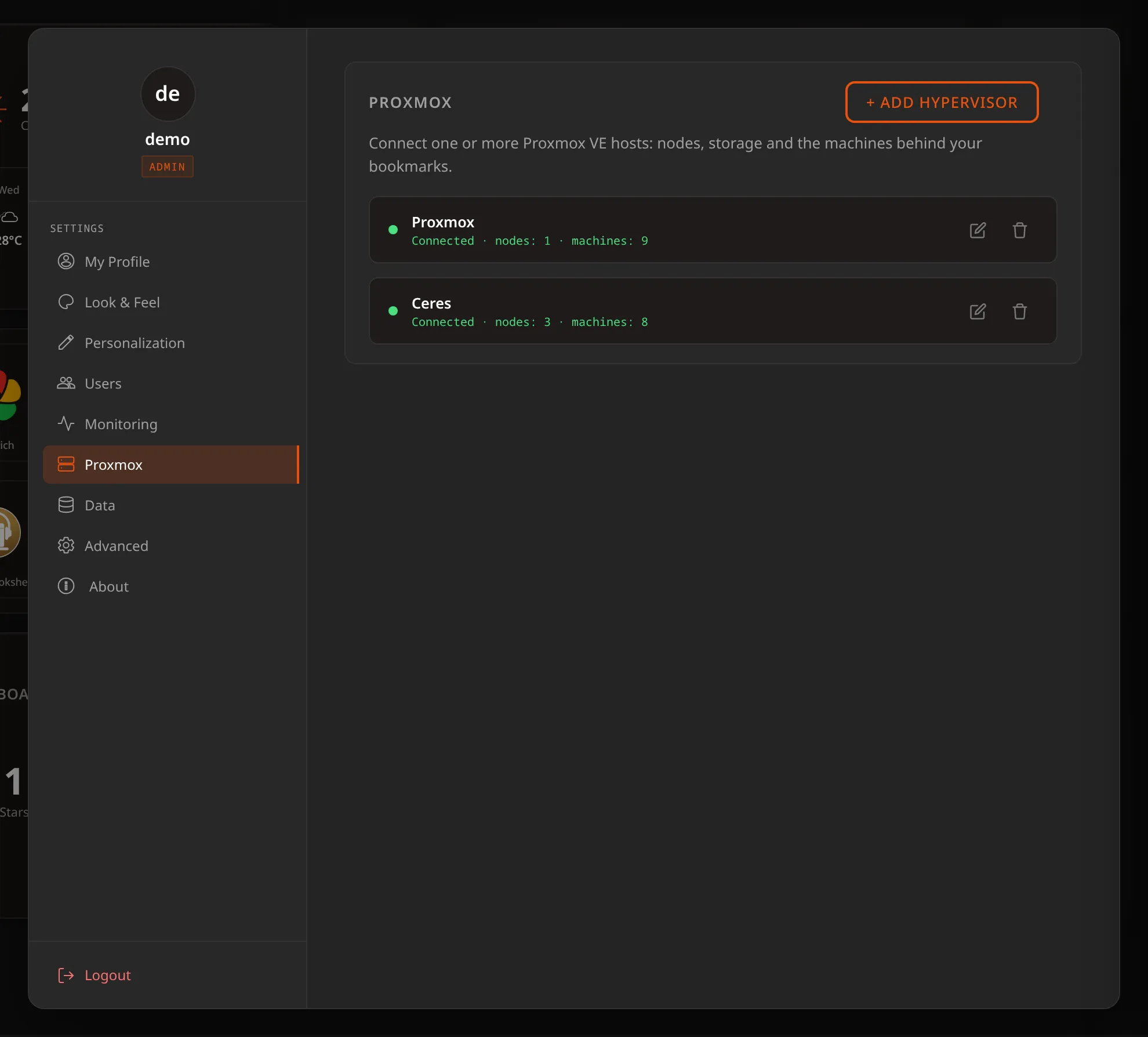
Connect Lastboard to one or more Proxmox VE hosts — one card each, with a name, address, API token and certificate policy. Saving reads every host straight away and says, per card, what that token can see and whether it may start and stop machines. Each account connects its own hypervisors: yours are never listed to, and never used by, anybody else. See Proxmox for the token recipe and the page it unlocks.
Data
Full backup & restore, and importing/exporting dashboards. See Import, Export & Backup.
It also says where your icons come from — how many of your bookmarks this server serves, and how many still fetch theirs from outside, with a button to bring those in. See Where icons are stored.
Advanced
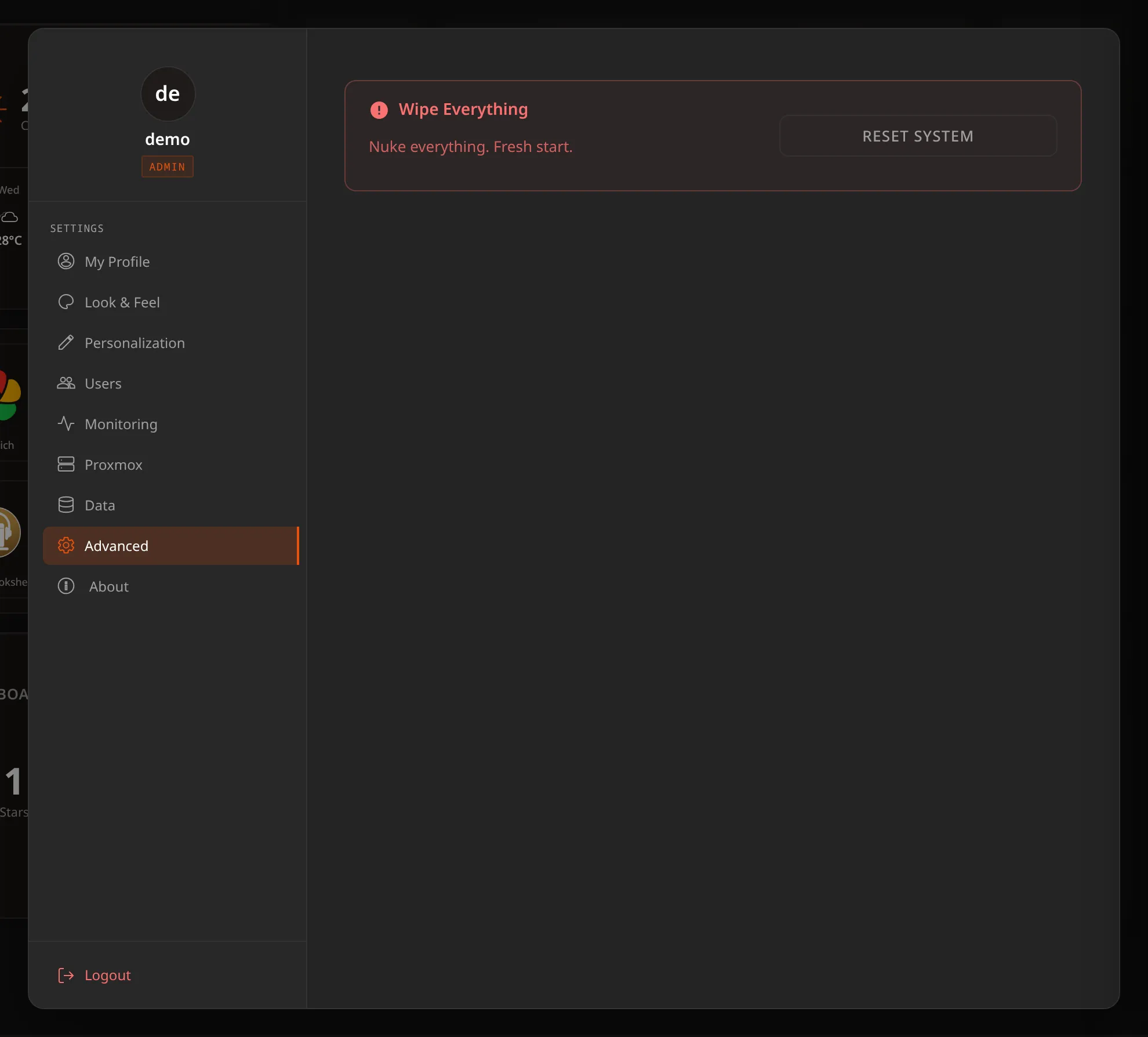
- Reset System — a safe-guarded “wipe everything” that asks for your password, erases all data and returns the instance to a fresh start (the Setup Wizard). This cannot be undone.
About
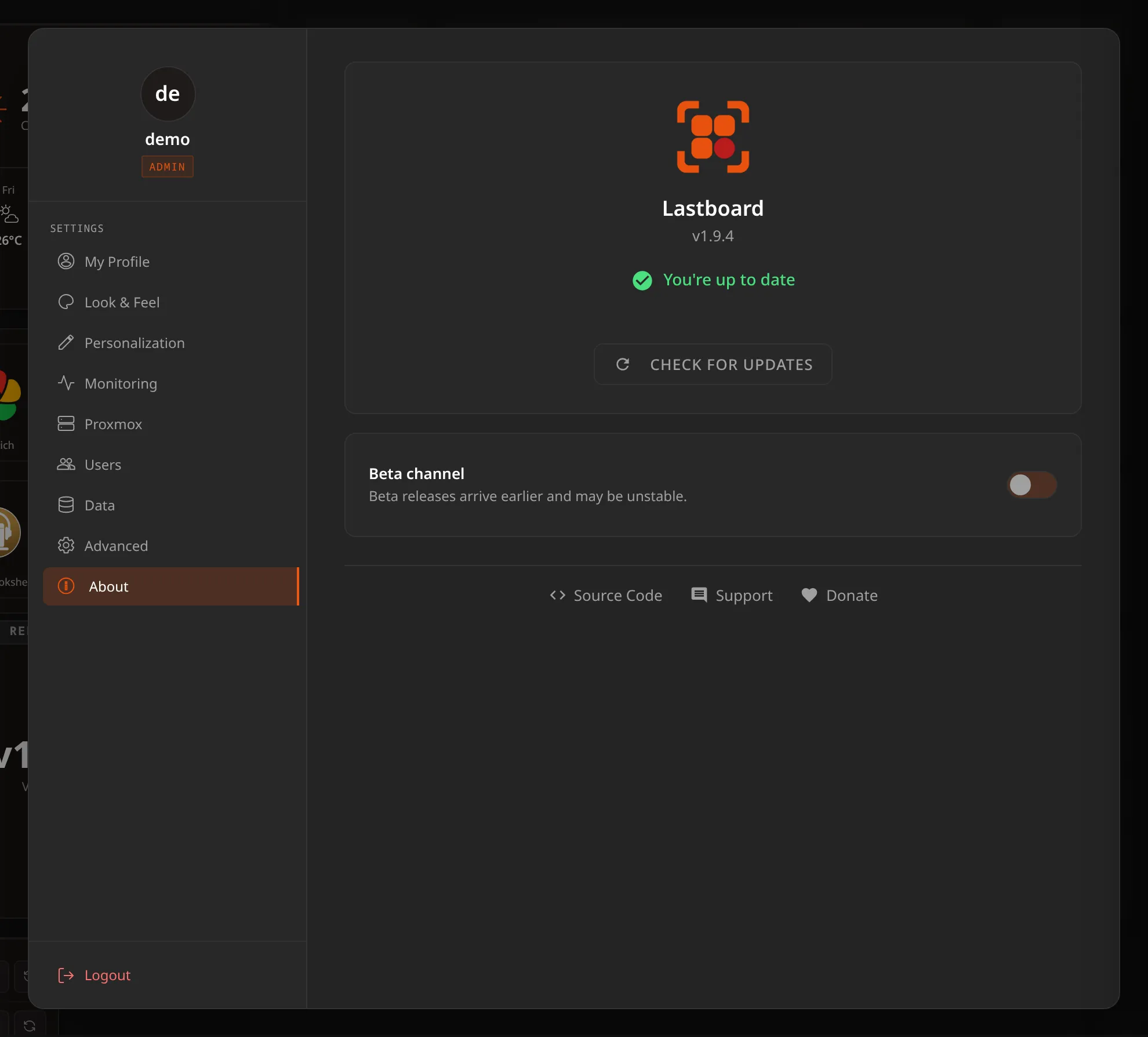
- Version — the running version, with an at-a-glance up-to-date indicator.
- Check for Updates — manually check for a newer release. See Updating for how updates are applied.
- Beta channel — opt in to beta releases, which arrive earlier and may be unstable.
- Source Code / Report Issue — links to the Forgejo repository and its issue tracker.