
Documentation / Lastboard / Getting started
Bookmarks
On this page
Bookmarks are the core of Lastboard: quick-launch tiles that link to your apps, services, and sites. This guide covers creating and customizing them, organizing them into sections, and controlling how they behave on mobile.
Adding a Bookmark
Enter Edit Mode (the pencil/edit toggle in the top bar). Tiles gain a drag handle and a menu of their own, and the Add (+) menu appears next to it.
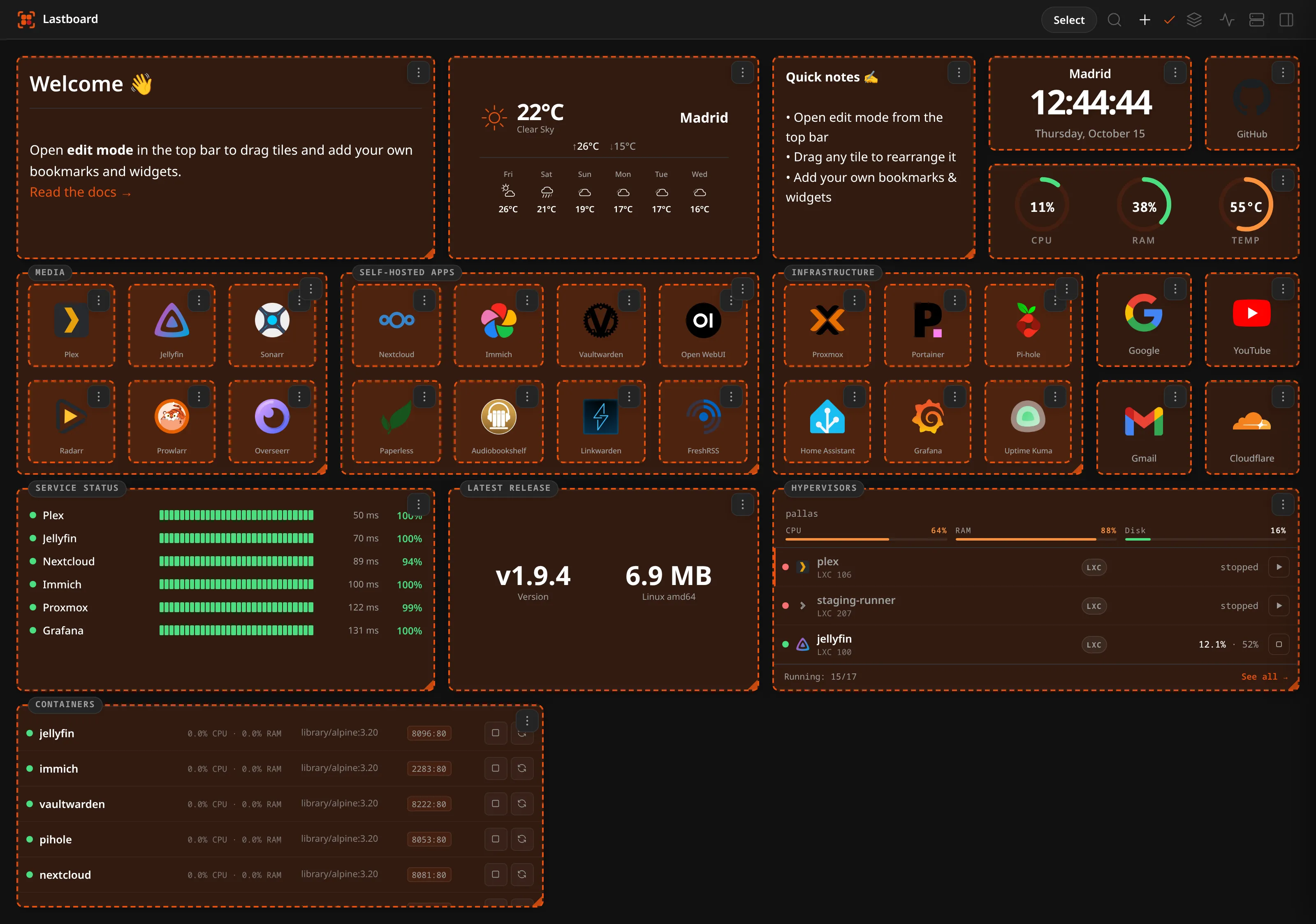
Tiles can be dragged to a new place, and their bottom-right corner resizes them a grid cell at a time. An outline shows where the tile will land or how large it will become, and it turns red when the target overlaps something — nothing is pushed aside to make room, so a move or a resize onto an occupied cell is simply refused. Let go over a red outline and the tile stays as it was.
A section is a container: drop bookmarks inside one and they travel with it. The recording below is one pass through all of it — adding a section from Add (+), giving it a name in the settings that open with it, dragging its corner out, and carrying two bookmarks that were already on the board into it.

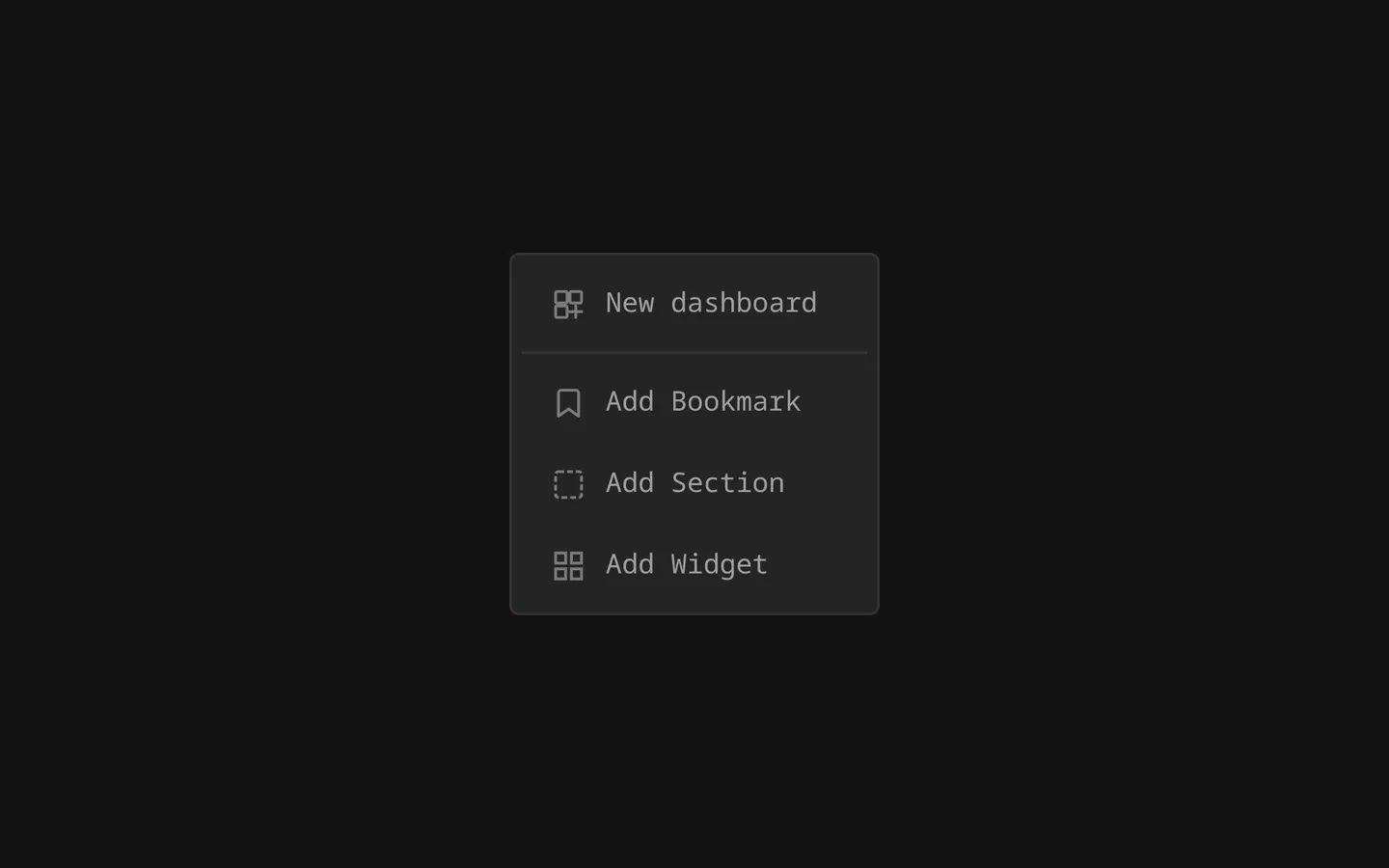
Use Add (+) to create a new bookmark.
A dialog opens with two tabs, General and Customization.
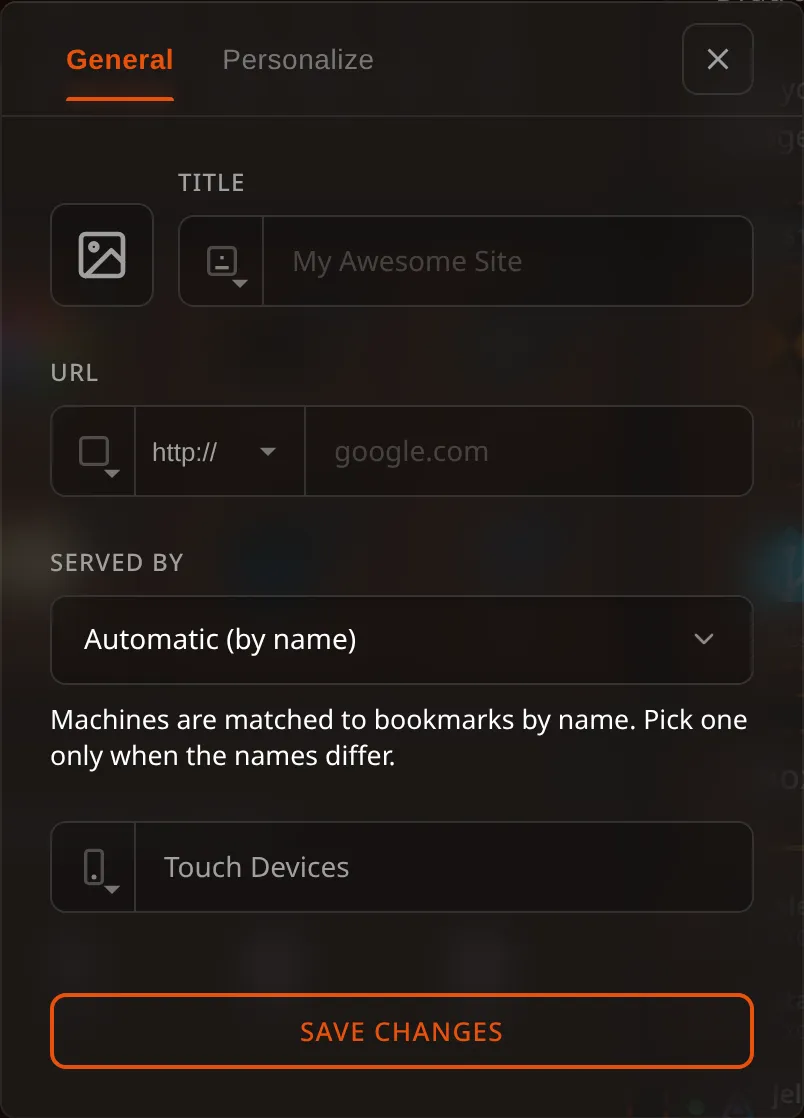
General Options
| Option | Description |
|---|---|
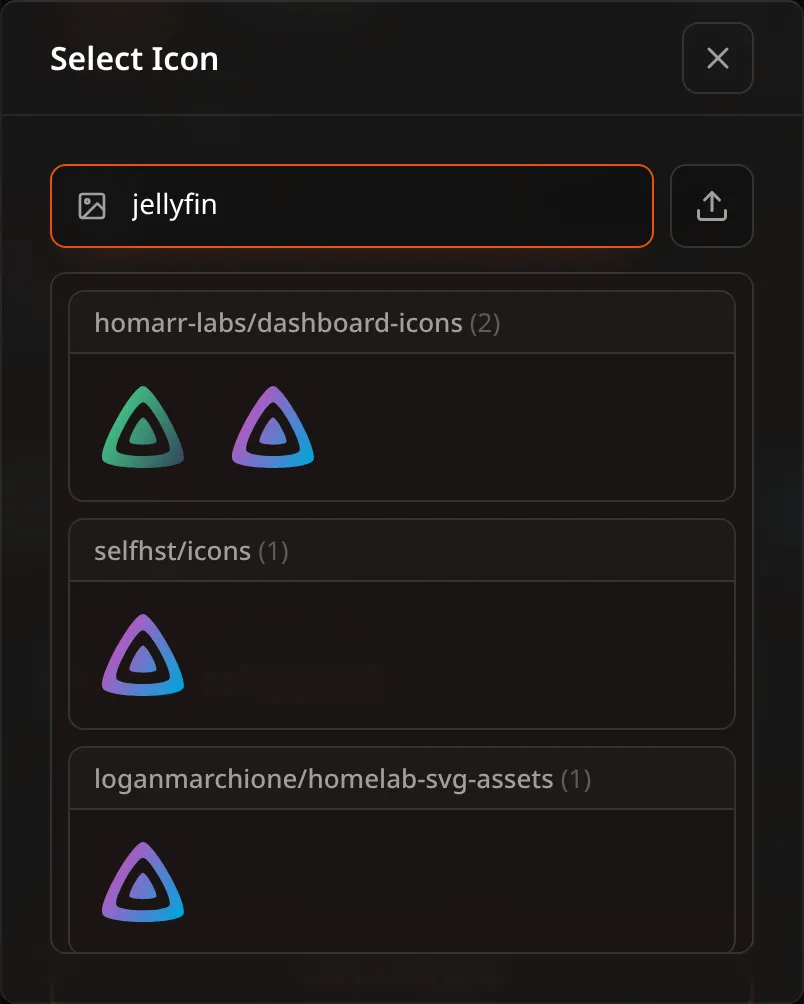
| Icon | Pick an icon from the built-in icon search, upload your own, or paste a direct image URL. If left empty, the first letter of the label is used as a placeholder. See Where icons are stored. |
| Title | The name shown on the tile. |
| Label Position | Where the label appears relative to the tile: Label Below (default), Label Above, Hidden (No Name) (icon only), or Section Style (renders the label as a section-style header). |
| URL | The destination address. A protocol dropdown lets you choose https:// or http://. |
| Status Position | Set it to a corner and Lastboard periodically checks whether the URL is reachable, showing an up/down indicator there. Pick Top Left, Top Right, Bottom Left, Bottom Right, or Off. |
| Served by | Only when a Proxmox host is connected: which machine runs this service. Left on Automatic (by name), Lastboard matches the bookmark to a machine called the same thing; pick one by hand when the names differ. |
| Touch Devices | Controls whether the bookmark appears on touch devices. See Mobile Visibility and Ordering below. |
Customization Options
The Customization tab controls the tile’s appearance:
- Border Color: The accent/border color of the tile.
- Border Width: How thick the tile’s border is — Thin, Regular or Thick.
Choosing an icon
Icon opens a search across several icon sets at once, grouped by provider. Pick one, upload your own image, or paste a direct URL.
Where icons are stored
Whichever way you choose an icon — provider search, your own upload, or a pasted URL — Lastboard downloads it once, when you save the bookmark, and keeps it in your own database. Your dashboard then loads it from your server.
This matters for three situations:
- Your connection is down. Your icons still appear, which is exactly when you need the dashboard to reach the services that are still up.
- Nothing is reported to anyone. Without this, every dashboard load would tell a public CDN your address and, from the icons requested, which services you run.
- The remote file disappears or is internal. An icon hosted only inside your network, or one that gets deleted upstream later, keeps working.
Identical icons are stored once no matter how many bookmarks use them, and an icon stops being kept when nothing points at it any more. Your icons travel inside backups, so restoring on a machine with no internet gives you the board exactly as you left it.
If the download fails, the bookmark is still saved and keeps the original URL — you never lose a bookmark over a picture.
Boards made before this existed
Nothing to do: when Lastboard starts it brings in any icon that is still fetched from elsewhere, so upgrading is enough. A board of 25 bookmarks takes well under a second, and the log says how many were stored.
Settings → Data always says where your icons come from: how many of your bookmarks this server serves, and how many still fetch theirs from outside. It counts bookmarks, not stored images — one image can dress several bookmarks, and avatars, the panel logo and the icons chosen for Proxmox machines are kept here too without appearing in that figure. If the machine had no connection when it started, the icons stay as they were, it tries again on the next start, and that panel offers a button to fetch them without waiting.
Sections
A Section is a container that groups related bookmarks together under a title. Create one from the Add menu, then drag bookmarks into it to nest them. Sections keep large dashboards organized and can be resized like any other item.
Bookmarks and sections can also be moved to another dashboard — individually or in bulk. See Dashboards.
Reordering & Search
- Drag to reorder: In Edit Mode, drag any bookmark (or section) to reposition it on the grid. The layout is saved automatically.
- Search: Use the search box in the top bar to filter bookmarks by label in real time. Press Ctrl+K (Cmd+K on macOS) to put the cursor in it without the mouse; the shortcut does nothing while edit mode, the settings drawer or a full-screen page is open.
Mobile Visibility and Ordering
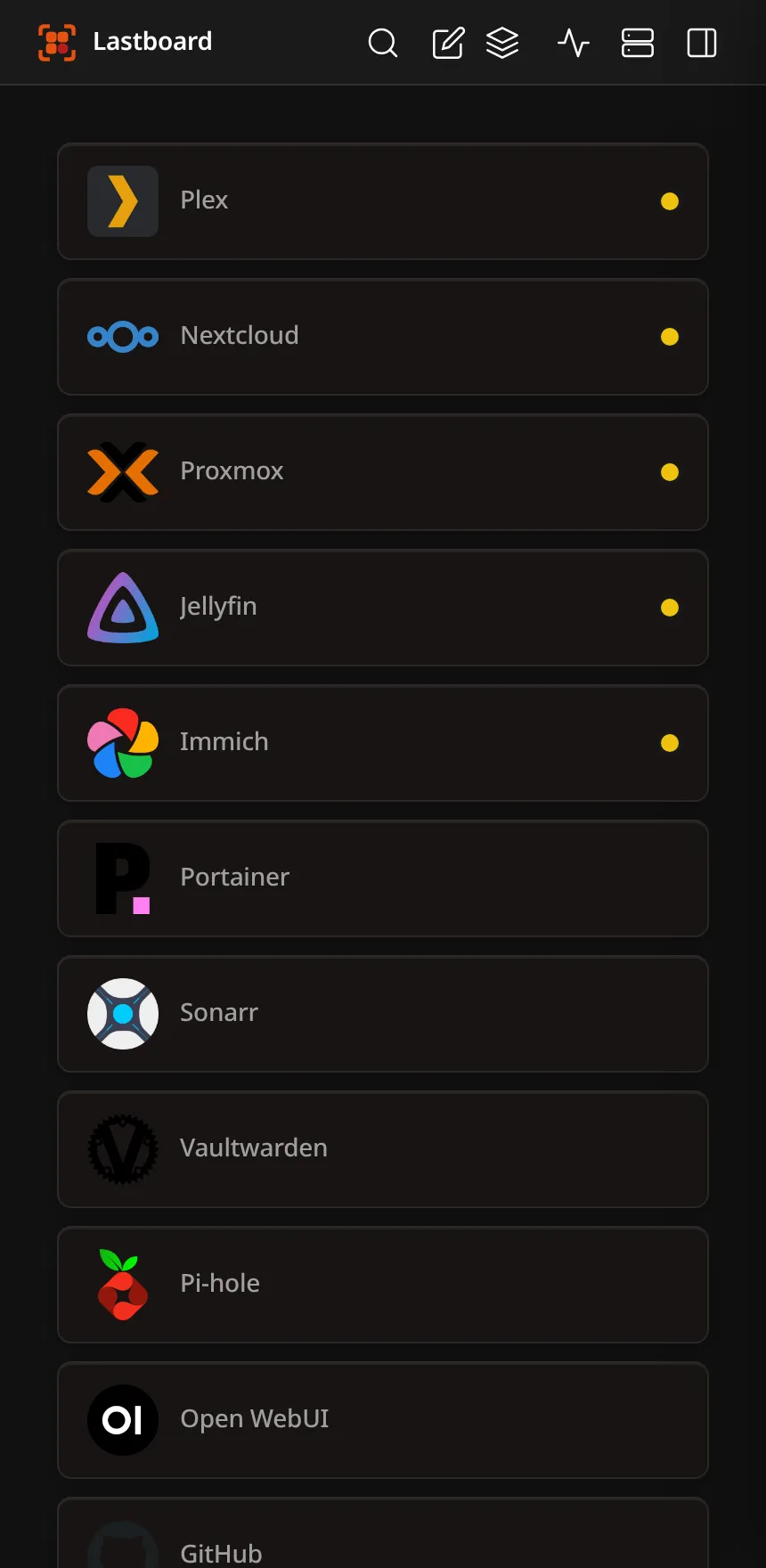
Lastboard renders a simplified, touch-friendly layout on phones. You have full control over which bookmarks appear there and in what order.
Hiding a bookmark from mobile (desktop editor)
When editing a bookmark on desktop, the Touch Devices control (the phone icon, struck through when off) toggles whether that bookmark appears on touch devices. Bookmarks hidden this way simply don’t render on mobile.
The mobile edit sheet
On a touch device, tapping the edit toggle in the top bar opens a bottom sheet that manages both visibility and order. It has two sections:
- Visible — the bookmarks currently shown on your phone. Drag the handle (the dots on the right of each row) to reorder them.
- Hidden — bookmarks currently hidden from mobile, shown dimmed.
Each row has an eye button (to the left of the drag handle):
- Tap the eye on a visible row to hide it — it slides down into the Hidden section.
- Tap the eye on a hidden row to show it again — it moves back to the end of the Visible list.
Changes are deferred: nothing is saved until you tap Save changes. Tapping Cancel (or closing the sheet) discards everything. This means you can freely rearrange and toggle visibility, then commit it all at once — or back out with no effect.
Note: The mobile order and desktop grid order are independent. Reordering on mobile does not change your desktop layout, and vice versa.