
Documentation / Lastboard / Using Lastboard
Dashboards
On this page
Lastboard gives each user multiple independent dashboards. Every dashboard has its own layout and its own items — useful for separating, say, a media stack from home-automation or work tools. There is no limit on how many you create beyond the per-user item ceiling (MAX_ITEMS_PER_USER, 500 by default).
Creating a Dashboard
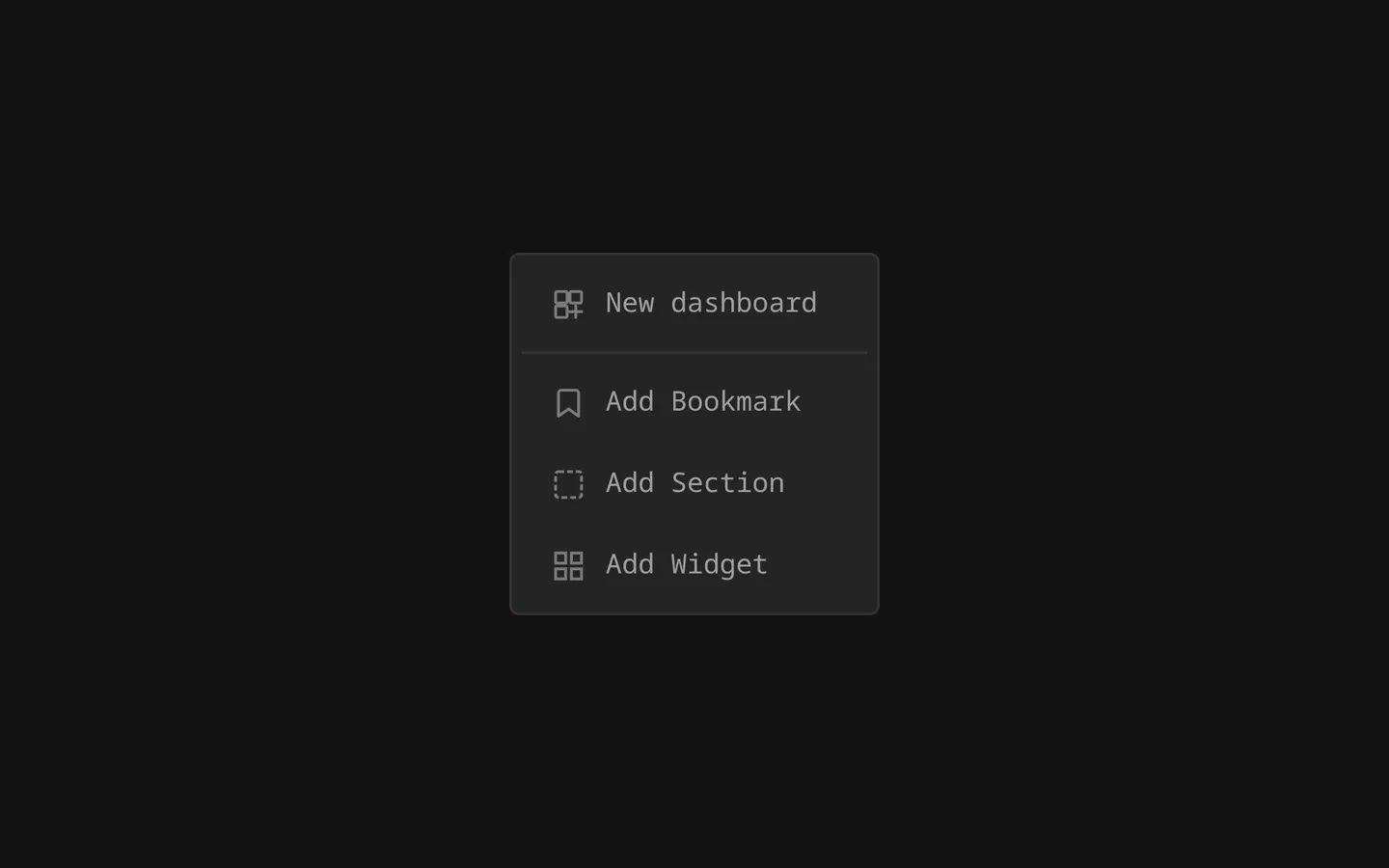
A dashboard’s name can be up to 50 characters. New dashboards are not created from the switcher. Enter Edit Mode, open the Add (+) menu in the top bar, and choose New dashboard — the same menu you use to add bookmarks, sections, and widgets.
Managing Dashboards
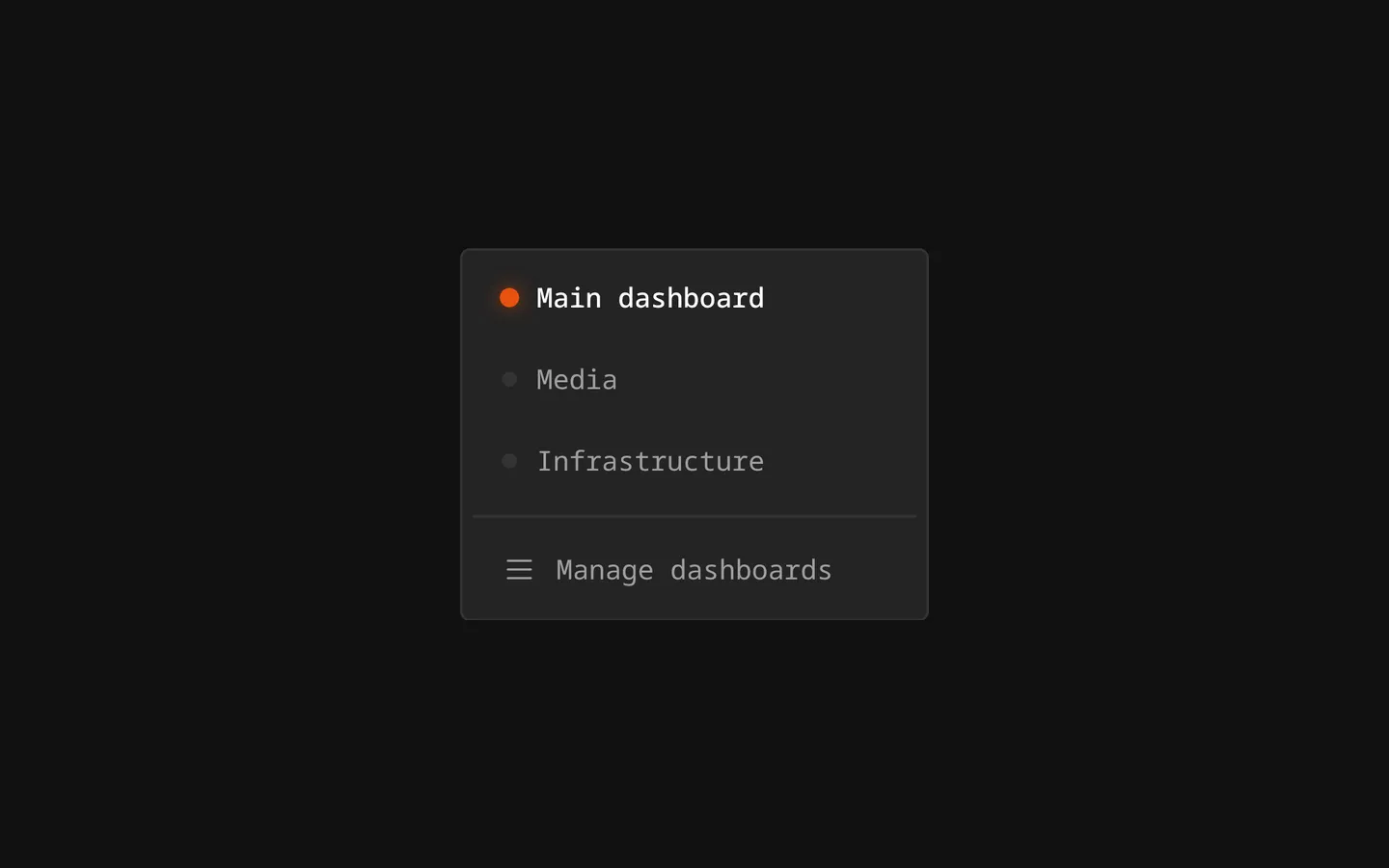
Use the dashboard switcher in the top bar. Switch — click any dashboard to open it instantly.
Everything else is in Manage dashboards, at the bottom of the switcher.
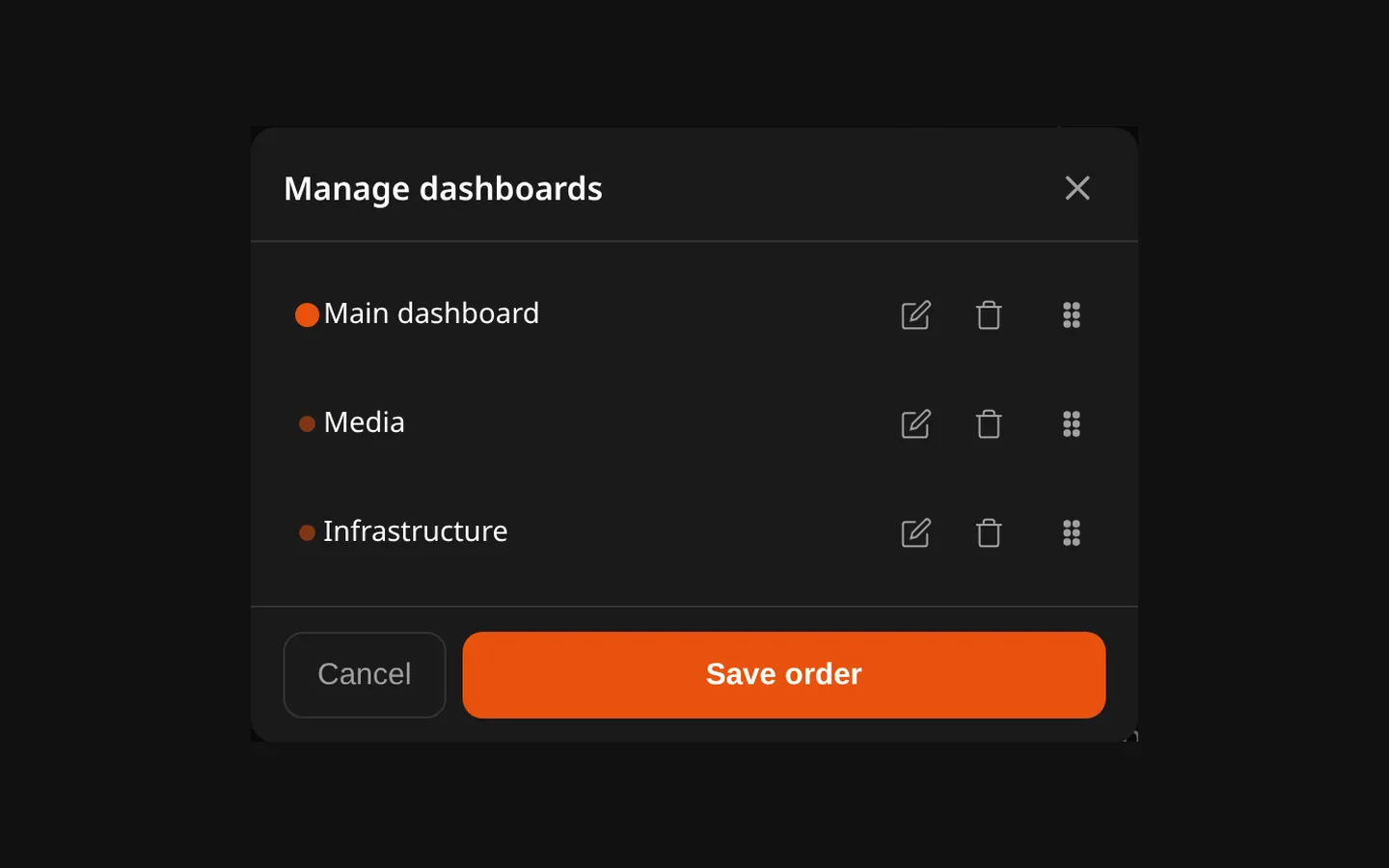 Each dashboard is a row with its own buttons beside the drag handle, always visible (so a finger on a tablet never hits one by accident):
- Rename — the pencil.
- Delete — the bin: it asks first, removes the dashboard and everything on it, and is switched off for the last one, since you always keep at least one.
- Order — drag a row by its handle, then Save order. Renaming and deleting take effect at once; only the order waits for the button.
Moving Items Between Dashboards
You can move bookmarks, widgets, and whole sections from one dashboard to another without recreating them.
Move a single item
- Enter Edit Mode.
- Open the item’s ⋮ (kebab) menu and choose Move.
- Pick the destination dashboard.
The item is placed automatically on the target dashboard’s grid — you don’t have to position it by hand. Moving a section takes all of its nested items along with it.
After the move, a toast appears with a Go action that jumps you to the destination dashboard, where the arrived item is briefly highlighted so you can spot where it landed.
Move several items at once
- In Edit Mode, start a selection from the top bar.
- Tick the items you want to move.
- Use the move action in the top bar and choose the destination.
All selected items move together and are auto-placed on the target dashboard.
On mobile, dashboards can be switched and reordered, but moving items between dashboards is a desktop editing action.
What is shared and what is not
| Scope | |
|---|---|
| Layout, items, sections, widgets | Per dashboard |
| Which dashboard opens first | Per dashboard (the one marked default) |
| Order in the switcher | Per dashboard |
| Background image, accent colour, theme, language, units, grid columns | Per user — one setting, every dashboard |
| Monitoring settings, alert channel, Proxmox connections | Per user — each account has its own |
| Users, backups, updates | Server-wide, administrator only |
So a background you set in Settings → Look & Feel applies to all of your dashboards at once, not only the one that was open. See Preferences for the appearance options.
Deleting a dashboard
Deleting takes every item on it with it, and it cannot be undone — take a backup first if the layout matters. You always keep at least one dashboard: the last one cannot be deleted.