
Documentation / Lastboard / Proxmox
Proxmox
On this page
Lastboard can read your Proxmox VE host and show it beside the services it runs: the nodes and their load, how full each storage is, and every virtual machine and container — with the bookmark each one serves.
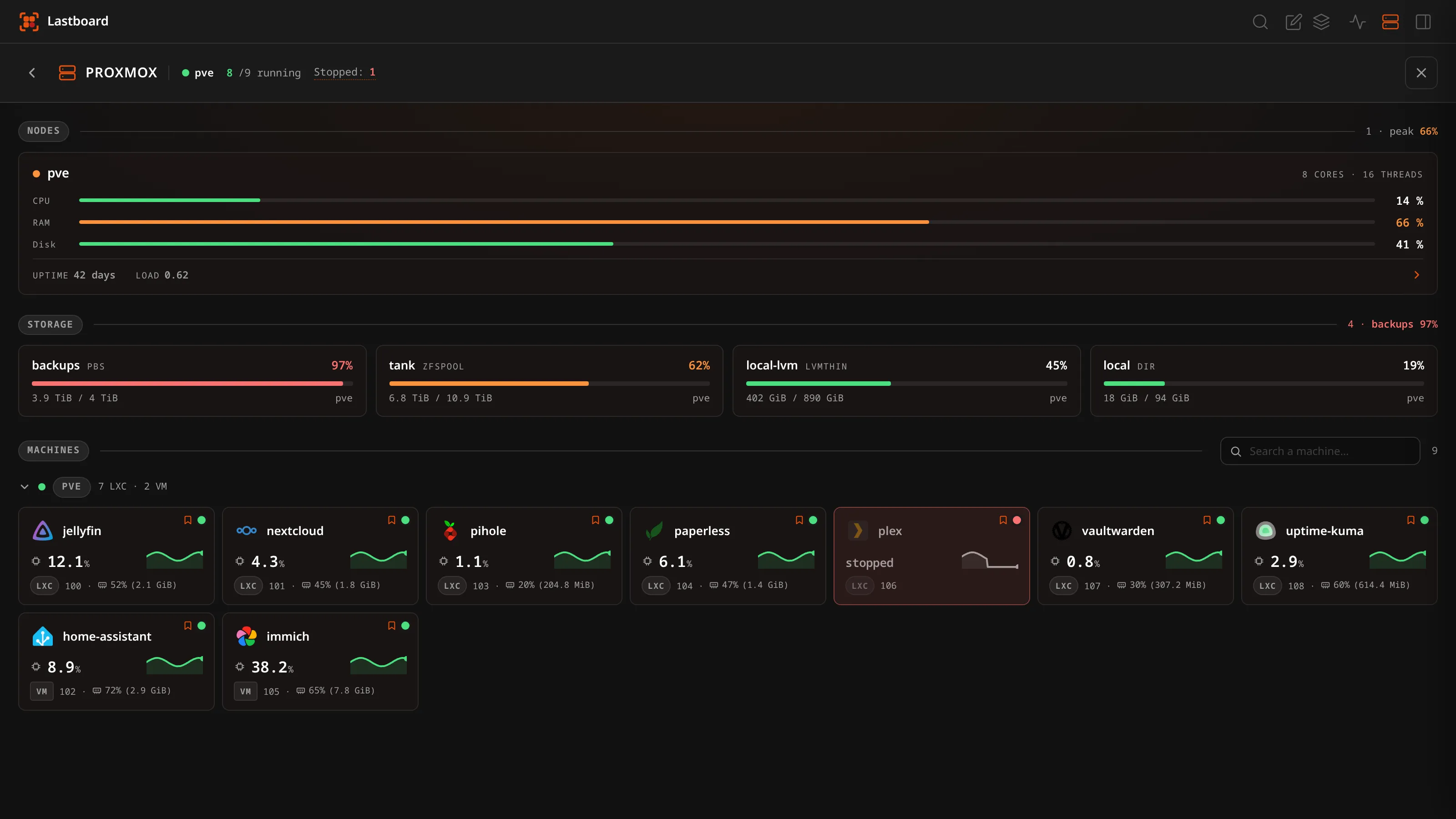
That last part is the point. Your Proxmox console at :8006 already administers the cluster, and it does it better. What it cannot tell you is that Plex stopped answering because container 106 is down, because it has never heard of your bookmarks. This page can.
What Lastboard needs
One API token per hypervisor, read-only if you want them to be. Lastboard never asks for a Proxmox password, keeps nothing about your machines, and stores no history: every figure on the page is read from the host when you open it.
More than one hypervisor is fine. A main cluster and an offsite node, a production one and a lab: each is connected on its own terms, with its own token and its own certificate policy, and one being read-only says nothing about the others. What follows describes connecting one; repeat it for each.
1. Create the token on your Proxmox host
Run this over SSH on any node, as root. It creates a user, a role with the permissions Lastboard actually uses, and a token bound to that user:
# A role with exactly what Lastboard uses, and nothing else
pveum role add Lastboard --privs "Sys.Audit Datastore.Audit VM.Audit VM.PowerMgmt"

# A user for Lastboard, in Proxmox's own realm (no shell account is created)
pveum user add lastboard@pve
pveum acl modify / --users lastboard@pve --roles Lastboard

# The token. Privilege separation off, so it inherits the user's role.
pveum user token add lastboard@pve lastboard --privsep 0
Why
--privsep 0. With privilege separation on, a token needs its own ACL entry as well, and what applies is the intersection of the two. That is the usual reason a freshly made token “cannot do anything”. This user exists only for Lastboard, so the token may as well carry the user’s role.
The last command prints the secret once and never again. Copy it now; if you lose it, delete the token and create it again.
You end up with two values:
| Value | Looks like |
|---|---|
| Token id | lastboard@pve!lastboard |
| Token secret | 61b6dfca-9f17-4e5a-8a9f-3d1c0b7e5a2f |
Read-only, if you prefer
Drop VM.PowerMgmt from the role and Lastboard reads everything and hides the start and stop buttons — it asks the host what the token may do rather than assuming, so there is nothing to configure twice:
pveum role add Lastboard --privs "Sys.Audit Datastore.Audit VM.Audit"| Privilege | What it is for |
|---|---|
VM.Audit | Read virtual machines and containers: state, CPU, memory, uptime |
Datastore.Audit | Read how full each storage is |
Sys.Audit | Read node status: load average, cores, uptime |
VM.PowerMgmt | Optional. Start and shut down machines from Lastboard |
Nothing here grants console access, configuration changes, backups, or deletion. There is no privilege in the list that can destroy anything.
2. Connect it in Lastboard
Open Settings → Proxmox. The connections are yours: every account adds its own hypervisors and tokens, sees only those, and cannot use anyone else’s. If the instance was set up before accounts had their own, the administrator’s existing connections are theirs now.
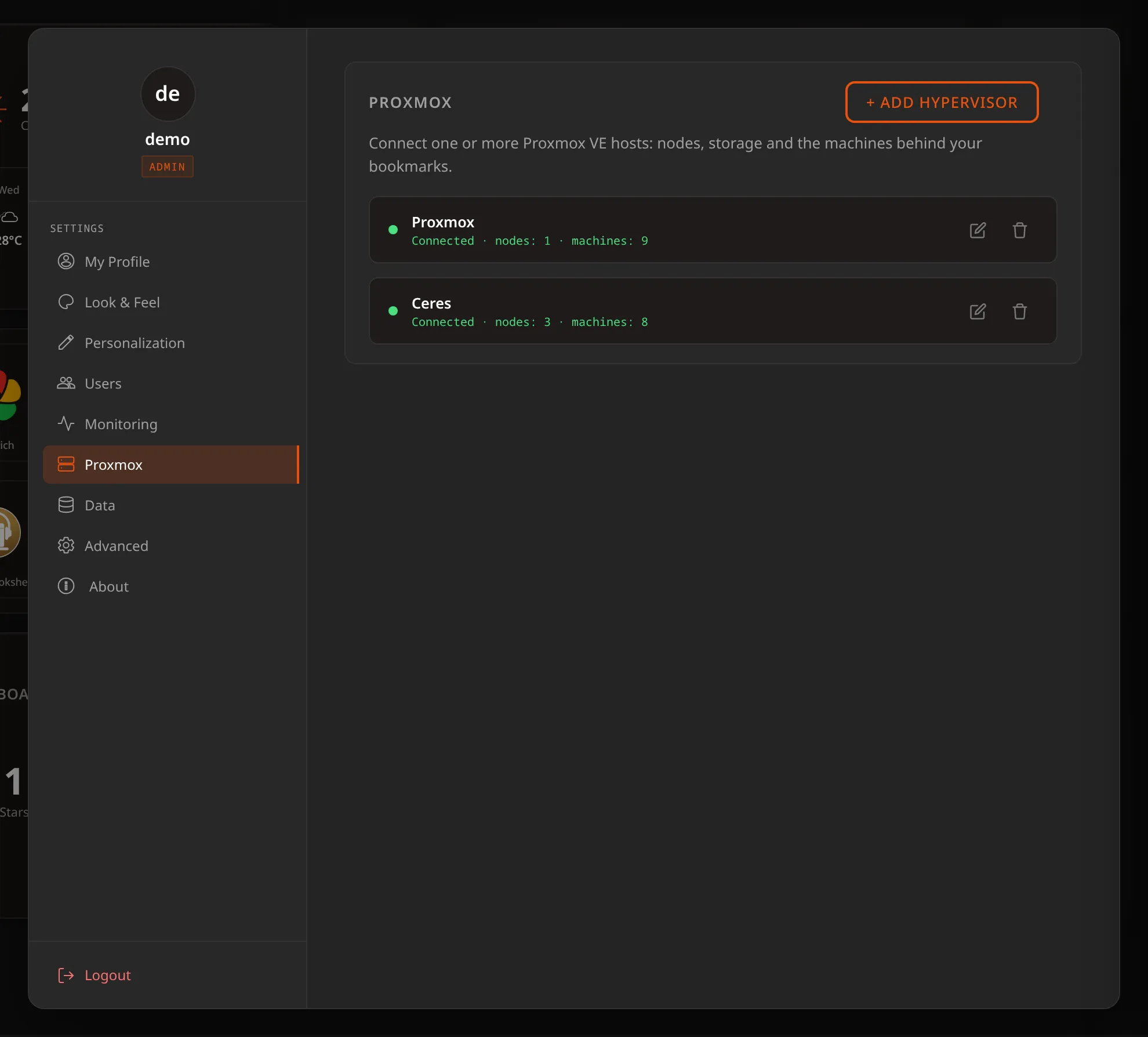
Connected hypervisors are a list, one line each: a dot for what it is doing, its name, and what it last answered. Add hypervisor opens a dialog for a new one, the pencil opens the same dialog on an existing one, and the bin removes it. Four connections stay four lines rather than four screens of form.
| Field | Notes |
|---|---|
| Proxmox integration | Turns this hypervisor on. At least one on puts the Proxmox icon in the top bar |
| Name | What this one is called here — Home, Offsite, whatever you file it under. It appears wherever its machines do |
| Address | The web interface address, port included — https://192.168.1.10:8006 |
| Token id | user@realm!name, exactly as Proxmox printed it |
| Token secret | Shown once by Proxmox. Stored here and never sent back to your browser |
| Accept a self-signed certificate | On by default, because almost every home hypervisor has one |
Save closes the dialog and then reads the host with what you gave it, so the line on its row tells you what that token can actually see. A mistyped token saves perfectly well — this is how you find out before you need it. One host failing says nothing about the others, so each row answers for itself.
Reopening a host, the secret box is empty and says Stored. Leaving it that way keeps the secret saved for that host; you only type it again to replace it.
Removing one asks first. Its machines lose the icons you chose for them, which is the part nothing else can give back.
The name is yours to change. Nothing is stored against it: the icons you choose for machines and the bookmarks you tie to them point at an id Lastboard generates, so renaming a cluster costs nothing.
Private addresses just work. The connection is made by the Lastboard server, so
10.x,192.168.xand.localaddresses need no extra configuration, and a self-signed certificate is accepted when the switch above is on.
With more than one: the summary
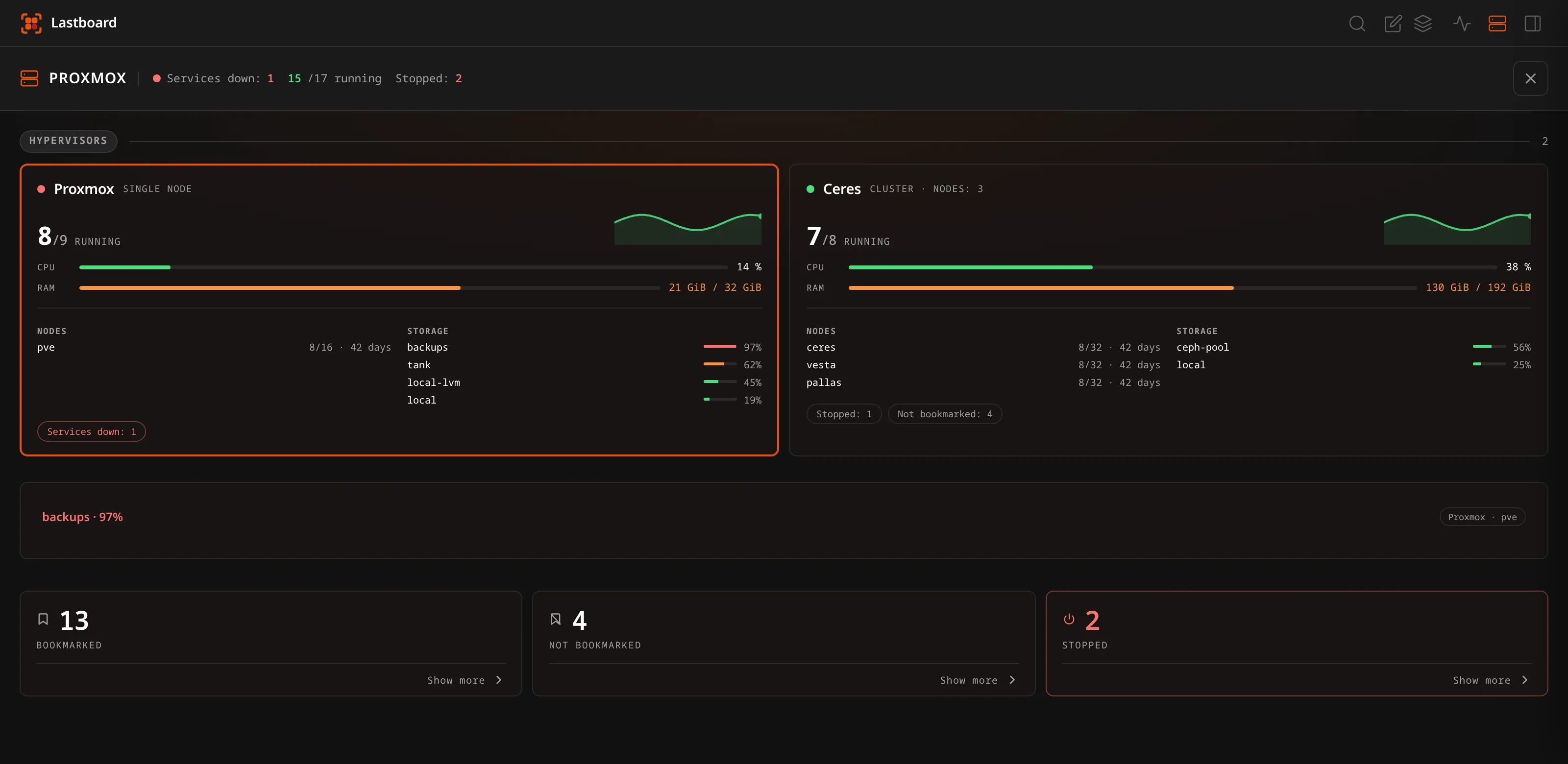
The Proxmox icon opens a summary when several hypervisors are connected. It is a board, like the rest of Lastboard: one tile per hypervisor, holding everything about it — its load, its nodes, its storage, what it is missing — and above them the only thing no single tile can say.
The hypervisors come first — they are what the page is for — and the questions you ask about them come under.
Three figures sit below them: Bookmarked, Not bookmarked and Stopped, each an icon, a number and a Show more. Open one and it grows downward inside its own card, one machine per line: the name on the left and a pill on the right saying which hypervisor and node it is on. Click any line to go into that hypervisor. The count is the whole answer most days; the names stay out of the way until asked for.
An open list is measured against the window and scrolls inside itself, so opening one never puts the page on a scrollbar it did not already have. All three open to the same height, whichever you press: a box of a known size that scrolls when it has to, rather than three that each pick their own. Below roughly 620px of window the hypervisors and the cards already fill the panel between them, and there is simply nothing left to open into.
A stopped machine with a bookmark on it is listed first and marked, because that is an outage — your service is not answering. The rest are machines somebody turned off.
Anything urgent sits above them and only when it exists: a hypervisor that did not answer, and a store past 90%.
Not bookmarked is the list of what you have not wired up to your board yet.
Each hypervisor’s tile carries, in one place: how many of its machines are running, its CPU over the last day as a curve, CPU and memory now, its nodes with cores against threads and uptime, its fullest stores, and a tag for anything of its own that is stopped or unbookmarked. The arrow goes in.
Clicking anywhere on a tile goes in. There is no button to find: the tile is the target.
Back walks back through the page, not out of Lastboard. Opening it is one step and going into a cluster is another, so Back — the browser’s button, the mouse’s fourth button, a swipe from the edge of a phone — takes you from a cluster to the summary, and from there to your board. Closing with the ✕ or with Escape takes those steps off the stack with it, so nothing is left behind to press. The status page behaves the same way.
Two figures are weighted rather than averaged, and deliberately: a node of 8 cores at 12% and one of 32 at 78% average to a number that describes neither, so a cluster’s CPU — the bar and the curve alike — is weighted by cores. The curve costs one request per node, which is what the endpoint answers.
A shared store is counted once. A Ceph pool is reported by every node of the cluster, so adding them up would triple it.
Two connections to the same address are allowed, and warned about. A second token with narrower permissions is a reasonable thing to want, but every total on this page adds the hypervisors up, so the same server connected twice lands in each of them twice. Settings says so when you save it, and saves anyway.
Click a card to go into that cluster. The header then carries its name and an arrow back.
With one hypervisor there is no summary, and there never was: the icon opens the cluster directly. A page in front of a single thing would be a click that buys nothing.
The page
The Proxmox icon in the top bar opens it — or the summary above, if you have more than one — and the × in its header closes it. While it is open the rest of the top bar is locked, the same way the status page behaves. Top to bottom:
The header carries the state of the host beside the title, not on a bar of its own: node name (or Cluster, when the host says it is one), how many machines are running out of how many in green, and Stopped — how many are not — in red. It is a headcount of the same machines, counted twice: the two numbers add up to the total, which is the point. Whether one of those stopped machines is serving a bookmark of yours is said where it can be acted on — on the tile itself, and on the summary.
Nodes — one card per node with CPU, memory and disk as percentages, and a labelled footer with uptime and load average. The uptime is spelled out in two units — 6 days and 17 hours, not 17 d and not 161 hours — in your own language and with its own plural rules. The full figures behind those percentages — 15 GiB / 31,1 GiB — are in the sheet the card opens, because “half full” says nothing about whether another machine, or another backup, fits. The header counts both cores and threads, which are not the same number: a chip with 12 cores reports 16 threads, and a card that names only one of them is ambiguous about which. On a cluster the header says so; a single node is never called a cluster.
Storage — one card per store, fullest first: how full it is, used and total, the kind (ZFSPOOL, LVMTHIN, PBS, DIR) and which node it belongs to.
Every bar on the page reads the same way, whether it measures a node’s CPU, a hypervisor’s memory or how full a store is: green while the figure is comfortable, amber from 60% and red from 90%. They are deliberately not your accent colour — an accent belongs to you and may itself be red, and a healthy bar has to look healthy to someone who has never seen your palette. The widget follows the same rule, so a board with both reads one way rather than two. The trend lines take the same three colours, from the figure they end on — a tile’s 24-hour CPU curve, a hypervisor’s load curve, the charts in a detail sheet — so a curve and the bar beneath it never disagree. A stopped machine’s line is drawn dim instead: a flat line at zero is not health, it is absence.
Machines — one tile per virtual machine or container, grouped by node. A tile carries the icon of the bookmark it serves — the one chosen for it if there is one, then the bookmark’s (matched by name, or told to it — see below), its name, its CPU with a trend line over the last 24 hours, and on the bottom line its type (LXC in a capsule, VM in a box), its VMID and its memory as a percentage with the figure behind it — 32% (165,6 MiB). A chip and a memory stick mark which figure is which. The corner carries the marks rather than figures: the status dot, and a bookmark glyph beside it when a bookmark of yours runs on this machine. Templates are left out: they cannot run, so they have no state to show.
The dot in the corner says one thing, the two colours the header counts: green running, red stopped. The tile itself says the rest:
| Running | full colour |
| Stopped | dimmed, with a soft red edge and a faint red wash over the whole tile, so it is found from across the grid |
| Stopped and serving a bookmark | exactly the same, plus the bookmark mark in its corner: that one is an outage, and the mark — not a second colour — is what says so |
The red is the danger colour, never your accent. An accent belongs to you and may be orange or blue, and “stopped” has to mean the same on every board. It is deliberately soft: a few machines off is not an emergency.
Tiles keep their place whatever happens to them — by kind, then by VMID. A machine you know where to find stays there, and a stopped one is picked out by how it looks rather than by the grid rearranging itself under your pointer. (The widget is the other way round: it has room for a handful of rows, so what needs attention is lifted into them.)
Each node folds. Click a node’s heading in the Machines section and its tiles collapse to a single line, keeping the count so you still know what is inside — useful on a cluster, where every node’s machines end to end make a very long page. The fold is remembered in your browser, per node, so a cluster stays the way you left it.
A folded node’s machines are not asked for either: their trend lines are one request per machine, so folding a node you are not looking at spares your host those calls entirely.
The search box in the Machines header filters by name or VMID. When something is stopped, the Stopped count becomes a button: click it to show only those machines, and click it again to bring the rest back — it now shows exactly what it counts. While either is active, folds are ignored — a search that reported nothing because the answer was folded away would be a lie the page told about its own contents.
A machine in detail
Click a tile.
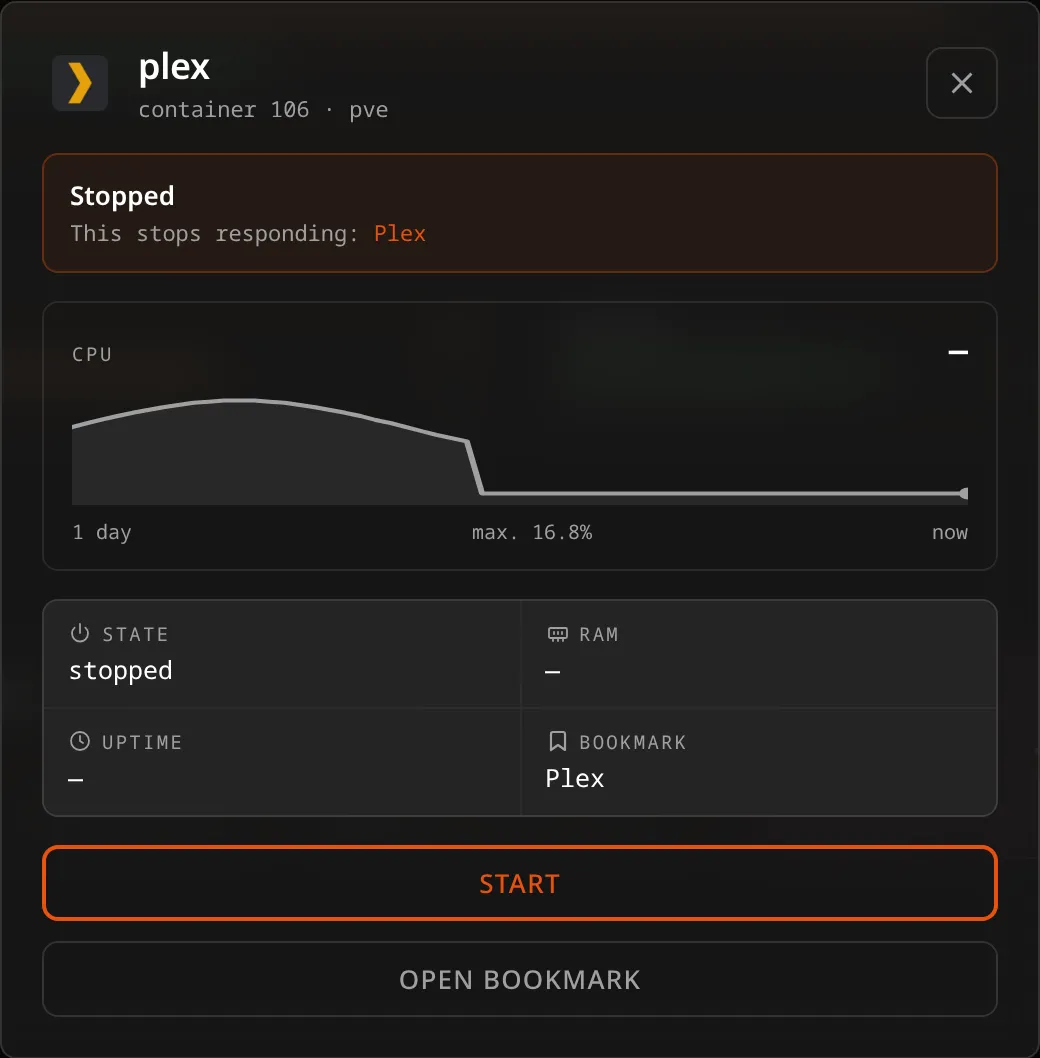
The sheet shows the machine’s own CPU trend, its state, memory and uptime, the bookmark it serves — and the sentence this page exists for when it is stopped: This stops responding: Plex. Move the pointer across the chart and it says what the line was worth at that minute.
From here you can Start or Shut down the machine (when the token allows it), open the bookmark it serves, and click its icon to choose one.
The node and the storage cards open the same way, with their own charts and figures.
Starting and stopping
Lastboard offers exactly two actions, on machines only: start and shut down (the graceful one — the same thing the Proxmox console’s Shutdown does). Both ask for confirmation first.
Nodes cannot be powered off or rebooted from Lastboard, deliberately. A stopped container is one service; a stopped node is all of them, and that decision belongs at the console, not on a dashboard.
Actions are only offered for your own hypervisors, and the server checks the token’s permissions before relaying anything: with no VM.PowerMgmt the buttons are not drawn, and a request made anyway is refused here rather than at the host.
How a machine is tied to a bookmark
This is what turns a list of containers into something Lastboard can say anything about, and it happens on its own: your container 15-myspeed is matched to your MySpeed bookmark without you configuring anything.
The rule is deliberately strict, because naming the wrong service as the one that went down is worse than naming none:
- The leading ordinal machines get filed under is dropped (
15-myspeed→myspeed,90--haos→haos), then case, spaces and punctuation are ignored. - The bookmark is matched on its name or on the icon it wears — so a bookmark labelled Donetic still finds the container
08-donetick. - A machine is matched only when exactly one bookmark fits. Two Jellyfins and one
jellyfincontainer: no match, rather than a coin toss.
Measured on a host with twenty-nine containers and a board of fifty-five bookmarks, none of them configured: sixteen machines matched, none wrongly.
Machines that will never have a bookmark
Some never will: the CI runners, the tunnel, the test containers, the machine Lastboard itself runs on — nobody bookmarks the dashboard they are reading. Measured on a real host, that is ten machines out of twenty-nine.
For those, open the machine and click its icon: the same icon picker the bookmarks use. Whatever you choose is downloaded once by your instance and served from it afterwards, exactly like a bookmark’s icon, so the page still asks no CDN what you run. Remove icon, in the same sheet, gives it back the plain fallback.
The choice is yours, like the connection: your hypervisors, your faces. Another account that connects the same Proxmox picks its own.
When the names don’t agree
Some pairs no rule should guess — a container called 23-jellyfin-musica serving a bookmark called Jellyfin Music, or 90--haos serving Home Assistant. For those, edit the bookmark and pick the machine under Served by:
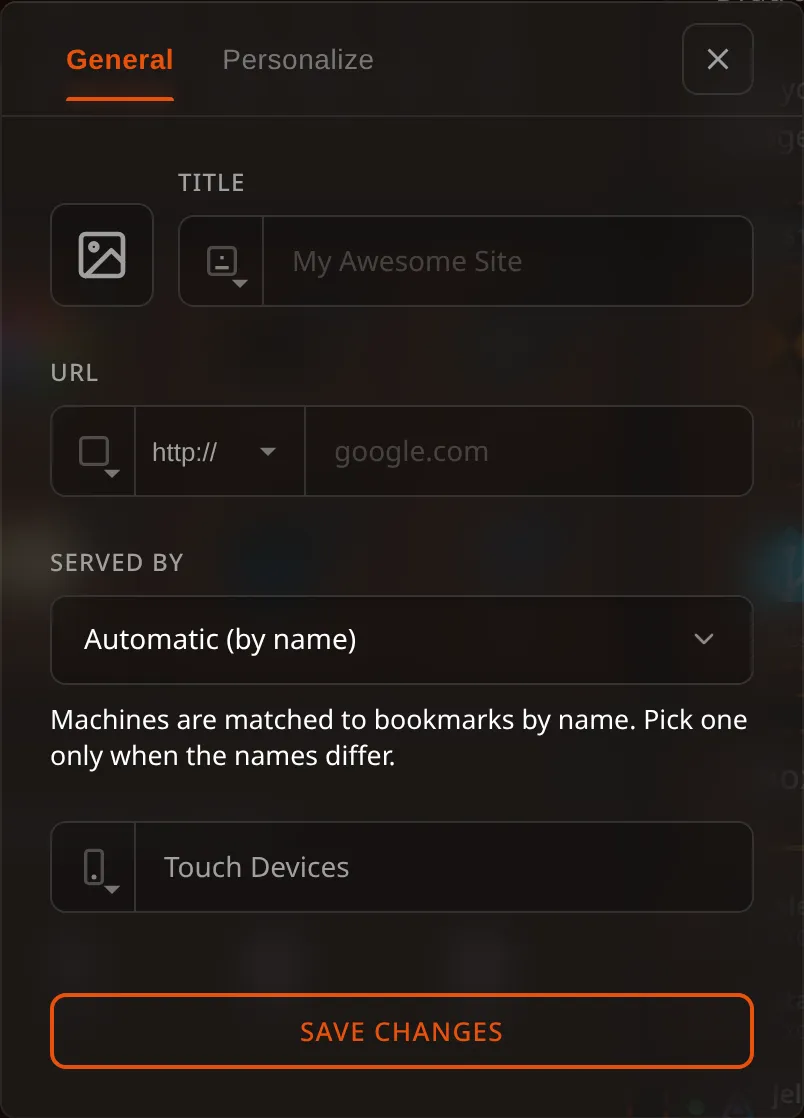
Leave it on Automatic (by name) and the rule above applies. Pick a machine and that wins, always — the guess never overrides something you said.
Once a machine is tied to a bookmark, however it got there:
- its tile on the Proxmox page wears that bookmark’s icon and name
- a stopped machine says which service it takes with it
- the widget lifts it above everything else that is merely stopped
A hand-made link lives inside the bookmark itself — no extra table, nothing to keep in step — and it works from any board: a bookmark on your Media board is found while you are looking at Servers.
With several hypervisors, a link names which one. It has to: VMIDs restart at 100 in every cluster and pve is the name a default install gives its node, so two of them sharing a machine 106 on a node pve is ordinary rather than exotic. The same goes for an icon you choose for a machine. Links and icons made before a second hypervisor existed keep working untouched — there was only one for them to have meant.
A hand-made link is not part of the YAML export, which carries the portable shape of a bookmark (name, address, icon, group). A full backup of the database keeps it. Matching by name needs nothing kept at all.
The widget
To keep this on the dashboard itself, add the Proxmox widget. It shows the busiest node’s health and the machines that need attention, and links through to this page. With several hypervisors connected it draws from all of them at once: a tile that showed only the first would go quiet about the machine that actually went down.
What Lastboard reads, and how often
Per hypervisor, and only for the one you are looking at — the summary reads one call from each, a cluster’s page polls only its own.
| When | Request |
|---|---|
| Page open or widget tick | GET /cluster/resources — one call for nodes, machines and storage |
| Page open | GET /nodes/{node}/status — one per node, for load and cores |
| Page open | GET .../rrddata — one per machine, for the trend line on its tile. Proxmox has no endpoint that returns history for more than one machine, so these are spread out, three at a time, and each is asked for once while the page stays open |
| Opening a machine | the history it already has, or a request for it |
| Pressing a button | POST .../status/start or .../status/shutdown |
Choosing an icon for a machine asks Proxmox nothing at all: it is stored here, beside the connection.
The page refreshes every 15 seconds while it is open and the widget on its own interval; neither polls when it is closed. Nothing is written to your database: no machine names, no figures, no history. The only things Lastboard stores are the connections themselves and the icons you chose.