
Documentation / Lastboard / Using Lastboard
Import, Export & Backup
On this page
Lastboard has two separate features that are easy to confuse. This page explains when to use each. Both live under Settings → Data.
| Full backup | Import / Export dashboards | |
|---|---|---|
| Scope | Everything: users, all dashboards, settings | Just dashboards and their items |
| Format | Backup file (complete snapshot) | Open, documented YAML |
| Restoring | Overwrites your current data | Adds new dashboards; deletes nothing |
| Use it for | Disaster recovery, moving to another instance | Sharing a layout, migrating from another app, keeping a portable copy |
Rule of thumb: Full backup is for recovering or relocating your whole instance. Import/Export is for moving dashboards around without touching anything else.
Both live in the same Settings → Data panel:
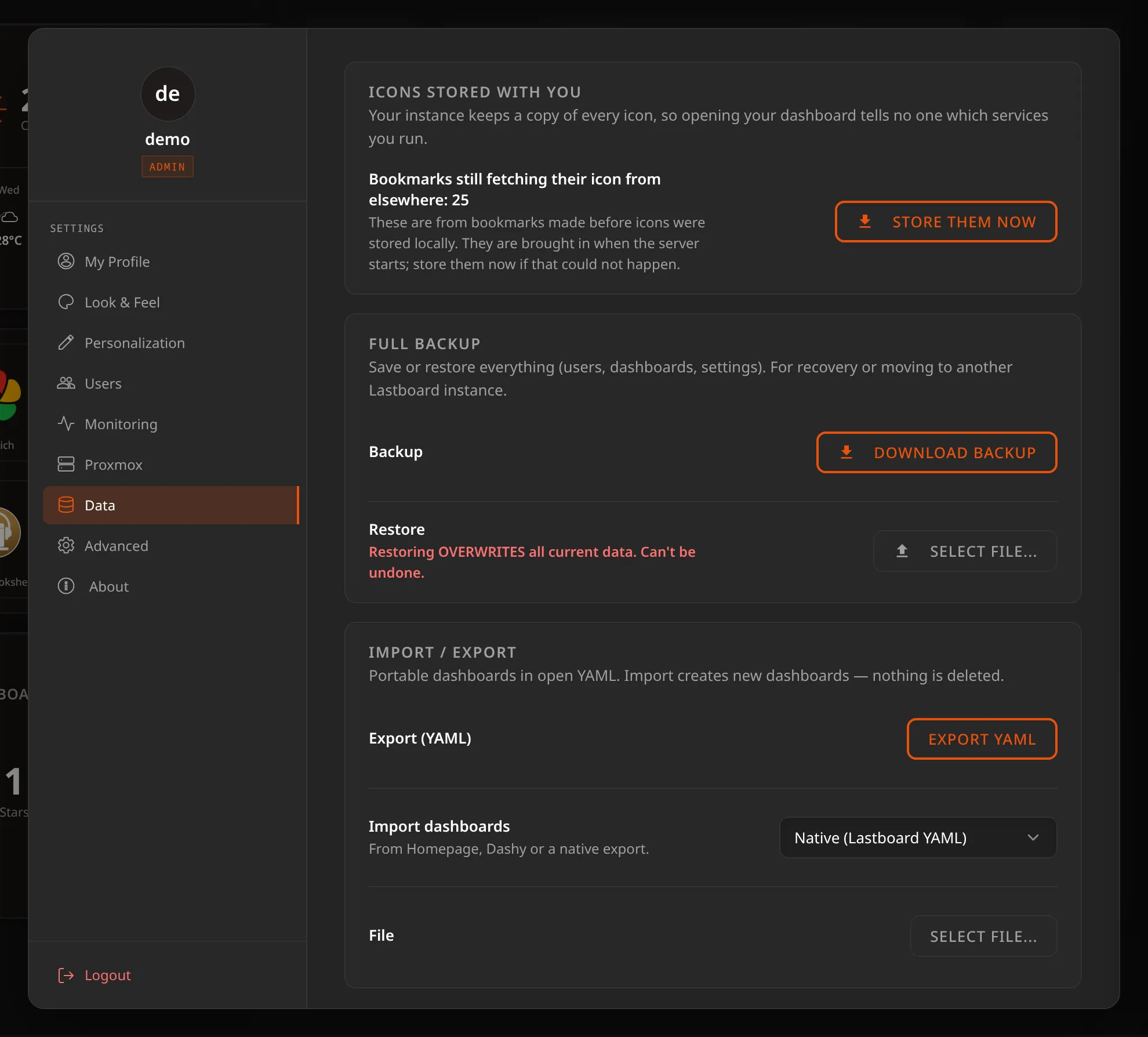
Full Backup
Saves or restores everything — every user, every dashboard, all settings, and your stored icons — as a single snapshot.
- Backup — download a complete copy of your instance.
- Restore — upload a backup to bring an instance back to that exact state.
What is inside, and protecting it
A backup holds each account’s Proxmox connections and monitoring settings, the order a phone shows bookmarks in, the API keys you typed into your widgets, the passwords of Server Health widgets that read another server, the agent tokens of Docker hosts, the Proxmox tokens, the monitoring notification token, and every account’s password hash. Downloaded as it is, it carries all of that unencrypted, so treat the file like the database itself.
When you press Download Backup, you can type a password (and confirm it). The whole file is then sealed under it: nothing inside can be read without it. Leave the fields empty to download the plain file.
- The password is not stored anywhere. There is no recovery: a protected backup whose password is lost cannot be opened.
- To restore a protected backup, choose the file as usual and type its password when asked. A wrong password asks again, and nothing is changed until it is right.
- Sealing uses Argon2id to derive the key and AES-256-GCM to encrypt, both from the Go standard library and its extended crypto module.
Backups taken on earlier versions restore too. One taken before each account had its own settings (before 1.9) holds the Proxmox and monitoring configuration for the whole server, and a restore hands it to the administrator; one taken before settings travelled at all does not include them, and restoring it leaves whatever the instance already has untouched. A backup that cannot be read in full fails with an error instead of producing a file with a gap in it.
Because the icons travel inside the file, restoring on a machine with no internet still gives you the board exactly as you left it. Backups taken before icons were stored locally restore fine too: their bookmarks come back with the URLs they were saved with, and the next restart stores those pictures for you.
Warning: Restoring overwrites all current data and cannot be undone. Every restored account starts a new session generation, so everybody is signed out: sign in again afterwards. Use it for recovery, or to move a full setup to another Lastboard instance — not to merge dashboards.
Export (YAML)
Downloads your configuration as open, documented YAML — no lock-in, easy to read, edit, and version-control. The file lists each dashboard and its items:
version: 1
dashboards:
  - name: Home
    items:
      - type: bookmark
        title: Jellyfin
        url: http://10.0.0.7:8096
        icon: jellyfin
        group: Media
Each item has a type, title, and url, plus optional icon, group (the section it belongs to), description and status_check. An icon is an address, an emoji, or the name of an icon in the libraries (jellyfin, as above). When the bookmarks use icons stored on your server, an icons: block at the end of the file holds those images, so the file stands on its own.
Import Dashboards
Bring dashboards in from another tool or a native export. Import always creates new dashboards — it never deletes or overwrites what you already have.
- Choose the format of your file — or leave it on Detect automatically, which reads the file as whatever it is. A file picked under the wrong format is read as the right one too.
- Pick the file.
- Confirm — Lastboard tells you how many items it will import, and how many entries of the file it leaves out, before creating anything.
Supported formats
| Format | Source file |
|---|---|
| Detect automatically | The default: any of the files below |
| Native (Lastboard YAML) | A file produced by Export (YAML) above |
| Homepage — services.yaml | Homepage’s services configuration |
| Homepage — bookmarks.yaml | Homepage’s bookmarks configuration |
| Dashy — conf.yml | A Dashy configuration file |
Items that don’t belong to a named group are placed under an Ungrouped section. After importing, you’re switched to the first new dashboard so you can review and rearrange it.
What a Homepage or Dashy file turns into
- Each group becomes a section, laid out side by side across the board. A group nested inside another (Homepage allows it) becomes its own section named after both — Media / Servarr.
- Entries with no usable address are left out, and the confirmation says how many. That covers a service that only points at a Docker container (it has no
href) and an address that is still a template such as{{HOMEPAGE_VAR_URL}}or${URL}, which only Homepage can fill in. - Icons become the real logos, stored on your server. A name from Homepage or Dashy (
plex.png,sh-sonarr,si-github,hl-plex) is looked up in the same icon libraries as the icon picker, and the image is then saved on your server like any other icon — opening the board asks nobody for it. A file in your own Homepage folder (/images/unifi.png) is looked up by its file name. An emoji is kept as it is, and so is a full address. - Some icons start empty, and the bookmark shows the default arrow: the one-colour glyph sets (Material Design
mdi-…, Font Awesome), Dashy’sfaviconandgenerative, and any name that none of the libraries has. Pick one for them from the icon picker afterwards. - Without a connection to the libraries, the names are still turned into the address Homepage’s own library would give them, and your server stores the images whenever it can reach them.
pingandsiteMonitorswitch the status check on. Widgets are not imported — Lastboard’s own widgets are set up from the dashboard.- Either Homepage option reads either file. The two files differ only in how an entry is written, so choosing bookmarks.yaml for a services file, or the other way round, still works.
- A failed import leaves nothing behind. If it stops half-way — you reach the item limit, the connection drops — the dashboard it was building is removed again, and you are told why when it is something you can fix.
The export carries the images your bookmarks use inside the file, so it can be opened on another Lastboard and show the same pictures. That makes the file larger — a board of 25 bookmarks comes to about a megabyte. If you import through a reverse proxy, allow bodies of that size (nginx’s client_max_body_size defaults to 1 MB), or the proxy answers before Lastboard sees the file.